Best Router for Frontier FiOS

frontier logo

FiOS service from Frontier Communications is a high-speed internet service brought into your home via fiber optic cabling.

If you are luckly enough to live in an area where FiOS is available, congratulations. Fiber-based internet service such as FiOS is far superior to the other broadband technologies most Americans’ get to deal with. It is generally both faster and more reliable than cable, DSL, or fixed wireless technologies.

As great as FiOS service is, however, the included router is not-so-great. Many people report that the included router does not perform well, especially when Wi-Fi is in use.

This leaves many people wondering what the best router for Frontier FiOS is?

Well, don’t sweat. We’ve reviewed the current offerings available on the consumer networking market, and will detail our pick here.

What is the best router for Frontier FiOS?

Here are the best routers for Frontier FiOS, listed in order of our preference:

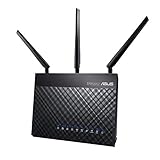
  1. ASUS RT-AC86U Dual Band AC2900 Router
  2. Netgear R6700 Dual Band AC1750 Router
  3. Linksys EA7500 Dual Band AC1900 Router
  4. ASUS RT-AC68U Dual Band AC1900 Router

Our Top Pick: Asus RT-AC86U

ASUS RT-AC86U
  • Connector Type : USB.Antenna: External detachable antenna x 3. Internal antenna x 1..Memory : 256 MB Flash, 512 MB RAM
  • Dual-band (2.4 plus 5 GHz) AC2900 wireless router with the latest 802. 11AC MU-MIMO technology for data transfer speeds up to 2900 Mbps
  • 1.8GHz 32bit dual-core processor optimizes network traffic and connectivity speeds from the USB 3. 1 Gen1 and 4x Gigabit LAN ports
  • Designed for lag-free online gaming and flawless 4K UHD streaming with WTFast game Accelerator and adaptive QoS; Product Segment: AC2900 ultimate AC performance: 750 plus 2167 Mbps
  • A protection powered by Trend Micro provides built-in 24/7 protection from external attacks and threats, neutralizing them before they reach your network or connected devices. DC Output : 19 V with max. 1.75 A current

Why the RT-AC86U is a good choice for FiOS

The team here at Infravio loves the RT-AC86U and recommends it to our readers frequently. This router is loaded with features, boasts excellent speed and reliability, and sells at a semi-affordable mid-range price point.

It excels for Frontier FiOS customers for several reasons:

  • It supports the latest 802.11AC wireless standard for superior range and bandwidth
  • Super-fast dual-band AC2900 rated with multiuser MIMO
  • It supports all of the features commonly supported in a Wi-Fi router, plus several unique features
  • Its’ WAN port supports a Gigabit Ethernet connection to the Frontier FiOS ONT – this is especially important for customers with the 150Mbps and 500Mbps plans, to ensure that you actually get the speeds you are paying for
  • It features a 1.8GHz dual core CPU to support multitasking and ensure fast throughput

Additional unique features not found on all routers

  • Ability to monitor and manage the router from a smartphone app
  • AiMesh technology support – able to connect with other ASUS routers to create a whole-home mesh network for better coverage and throughput
  • Range Boost technology for increased range and signal stability
  • Additional advanced features including IPv6 support, VPN server, and ability to create additional SSID’s
fiber spelling fiber

Why not use the included FiOS router?

Most FiOS installations are completed using the Frontier-issued Actiontec gateway or FiOS Quantum gateway (or equivalent).

These devices do not match the performance level of many aftermarket consumer-grade routers available today. Many people complain about insufficient Wi-Fi range, inability to support multiple devices very well, limited speeds over Wi-Fi, and limited customization options of the included routers.

Many people also don’t like the idea of being forced to pay a monthly lease fee to Frontier for one of these devices. Others simply wish to use features that may not be supported by the FiOS-provided box.

Fiber service is superior to Cable, DSL, fixed wireless, or other types of broadband because it is a very high capacity, very low latency, and a highly reliable medium. If you are lucky enough to have it in your home, you should make sure your router is up to the task as well.

Think of it this way – someone that drives a Station Wagon probably isn’t going to notice a difference if they fill it with premium fuel. But someone with a sports car definitely will notice a difference.

Bottom line: You are paying for a high speed, premium service – you have a sports car. Don’t put cheap fuel in it by settling for a sub-par router.

Things to know before you replace your FiOS-issued router

router with lan cable

Before you buy a new router, you should know a couple of things about your existing FiOS router:

  • If you have bundled FiOS television or voice services with your internet, you should pay special attention. These services generally rely on the FiOS-issued router in order to function. Replacing the provided router without considering this may result in certain services or features not working.
  • Also, you’ll need to check the connection type between your ONT and the router, as this may need to be changed before you upgrade your router.

Bundled services generally still depend on the FiOS router

Based on discussions and experimentation by other subscribers, FiOS voice services still require the original router in order to operate. You can usually either:

  • Connect the original router to a LAN port on your new router – thus voice/TV service would still operate through both routers and your Internet service would only use the new router.
  • Place the original router in ‘bridged mode’ and connect the new router through it – Internet traffic would pass through both routers, but it wouldn’t face the performance drawbacks or complications of being double-NAT’d since the original router wouldn’t be performing any routing duties. This requires first logging into the original router and reprogramming it from routed to bridged mode.

If you are an internet + TV subscriber only (no voice service), you may be able to utilize an Actiontec MOCA adapter to remove the original router completely, as documented here:  https://www.cnet.com/forums/discussions/simplify-fios-dump-actiontec-and-use-your-own-router/.

Basically, this procedure involves connecting the MOCA adapter to a LAN port on your new router, and then connect the Coax cable that was connecting to your FiOS-issued router to the MOCA adapter. This allows the set top boxes to still access the internet via the MOCA adapter + your new router.

Your router’s connection to the ONT may not be Ethernet

fiber cable exploded view

This generally only applies to customers that joined FiOS when it was still Verizon-branded, as new installations are no longer provisioned this way.

Originally, FiOS installs used a Coax (MOCA) connection from the ONT to the router. ONT stands for Optical Network Terminal and is the box that terminates the fiber signal coming into your house and converts it to a signal the router can understand.

If your install is configured this way, you will need to change it to an Ethernet (Cat5e) handoff before you install a new router, because none of the popular consumer-grade routers available today feature a Coax port.

There are two steps to this procedure:

  1. Run a new Cat5e cable between the ONT and router. This may be a piece of cake if you have an Indoor ONT. If your ONT is exterior (usually mounted on the outside of your house), running a new wire from the inside (where your router is located) to the outside of the house (where your ONT is located) can be substantially more work.
  2. Once the wiring is ready, you will need to contact Frontier Communications technical support (1.800.921.8101) and request that they  re-provision your ONT to use an Ethernet port instead of the Coax port. The Alcatel or Motorola ONT you have should already have an ethernet port, so they just need to re-configure the device to deliver your services over this port. Once this is done, they will tell you to plug in the new wire. Connect the other end to your new router, and you’re done.

More Great Choices

If you’re not interested in the ASUS RT-AC86U, (it is a little pricey, after all!) here are a few other models we would recommend for use with Frontier FiOS:

The best router for Verizon FiOS

In select parts of the country, Verizon FiOS still exists and hasn’t (yet) been acquired by Frontier Communications. If you are one of these customers, our recommendations here apply to you as well – since the Frontier FiOS and Verizon FiOS services are so similar.

The bottom line – pretty much any router will work

As long as your ONT is set up to provide an Ethernet handoff (as discussed above), pretty much any consumer-grade wireless router will work with your Frontier FiOS service. Just make sure it is a new enough router to allow you to get the speeds you are paying Frontier for. Many older routers only have a 10/100 WAN port, meaning that they aren’t capable of running any faster than 100Mbps and thus would limit a 150M or 500M Frontier customer to 100M.

Best Router for Brick Walls

Best Router for Brick Walls

Looking for a good wireless router to go with your high speed Internet connection but live in a house or apartment made of brick or concrete?

Look no further – let’s discuss the best router for brick or concrete walls.

What is the best router for brick walls?

Here are the best routers for brick or concrete walls:

Our Pick
NETGEAR Nighthawk Smart Wi-Fi Router, R6700 - AC1750 Wireless Speed Up to 1750 Mbps | Up to 1500 Sq Ft Coverage & 25 Devices | 4 x 1G Ethernet and 1 x 3.0 USB Ports | Armor Security
Linksys EA7500 Dual-Band Wi-Fi Router for Home (Max-Stream AC1900 MU-Mimo Fast Wireless Router)
Amazing Router, but Pricey!
ASUS AC3100 WiFi Gaming Router (RT-AC88U) - Dual Band Gigabit Wireless Router, WTFast Game Accelerator, Streaming, AiMesh Compatible, Included Lifetime Internet Security, Adaptive QoS, MU-MIMO
NETGEAR R9000-100NAR Nighthawk X10 AD7200 802.11ac/ad Quad-Stream WiFi Router - Certified Refurbished
Adequate signal strength to penetrate brick walls
WiFi Standard
802.11AC
802.11AC
802.11AC
802.11AD
Speed Rating
AC1750
AC1900
AC3100
AD7200
Processor Cores
2
2
2
4
Number of Antennas
3 (external)
3 (external)
4 (external)
4 (external)
Prime Status
-
-
-
Our Pick
NETGEAR Nighthawk Smart Wi-Fi Router, R6700 - AC1750 Wireless Speed Up to 1750 Mbps | Up to 1500 Sq Ft Coverage & 25 Devices | 4 x 1G Ethernet and 1 x 3.0 USB Ports | Armor Security
Router
Adequate signal strength to penetrate brick walls
WiFi Standard
802.11AC
Speed Rating
AC1750
Processor Cores
2
Number of Antennas
3 (external)
Prime Status
-
Linksys EA7500 Dual-Band Wi-Fi Router for Home (Max-Stream AC1900 MU-Mimo Fast Wireless Router)
Adequate signal strength to penetrate brick walls
WiFi Standard
802.11AC
Speed Rating
AC1900
Processor Cores
2
Number of Antennas
3 (external)
Prime Status
-
Amazing Router, but Pricey!
ASUS AC3100 WiFi Gaming Router (RT-AC88U) - Dual Band Gigabit Wireless Router, WTFast Game Accelerator, Streaming, AiMesh Compatible, Included Lifetime Internet Security, Adaptive QoS, MU-MIMO
Router
Adequate signal strength to penetrate brick walls
WiFi Standard
802.11AC
Speed Rating
AC3100
Processor Cores
2
Number of Antennas
4 (external)
Prime Status
NETGEAR R9000-100NAR Nighthawk X10 AD7200 802.11ac/ad Quad-Stream WiFi Router - Certified Refurbished
Router
Adequate signal strength to penetrate brick walls
WiFi Standard
802.11AD
Speed Rating
AD7200
Processor Cores
4
Number of Antennas
4 (external)
Prime Status
-

What’s the deal with brick or concrete?

The composition of materials used to construct a building can absolutely make a difference in the range, reliability, and performance of your wireless network.

If your house, condominium, flat, or apartment is primarily make up of brick or concrete, you have more challenges than someone living in a building composed of traditional materials such as wood and drywall.

This has do with the fact the the Electromagnetic Waves of the Wi-Fi signal get absorbed (or even reflected) more or less by different materials in the environment. In the case of brick or concrete, these materials absorb the signal much greater than wood does, resulting in decreased range and speed, and generally less reliability than the same Wi-Fi network in a wood environment.

What can I do about it?

This is where the selection of your router and it’s configuration comes into play.

Most routers nowadays are dual-band routers, which is a good thing. However, in the case of EM-absorbing materials being present in the walls, ceilings, and floors of your residence, (and therefore being present between your router and your phone/tablet/laptop) it is best to connect on a lower-frequency band if possible.

What does that mean?

Most routers can operate at both 2.4GHz and 5GHz. Generally 5GHz is preferred because of the greater availability of clear (non-overlapping) channels and fewer devices and interference to compete with.

However if you are dealing with brick or concrete, your primary concern is the ability for your Wi-Fi signal to penetrate the materials in your walls.

Lower frequencies penetrate better and are attenuated less by brick, so you should use 2.4GHz over 5GHz.

This logic is the opposite of what I usually recommend. As I said before, people living in brick or concrete environments have special challenges!

So I should just scrap my dual-band router?

Now, hold on. I’m not necessarily saying you shouldn’t use the 5GHz band on your router. In fact, for wireless devices that are close to your router such as in the same room, or perhaps just one room away – you should try sticking to 5GHz.

For the rooms that are further away than that, you may need to use 2.4GHz.

Overall what I’m trying to say, is that you should be prepared to test both frequencies and see which works better for you.

Best Router for Brick Walls – Netgear R6700

NETGEAR Nighthawk Smart Wi-Fi Router, R6700 - AC1750 Wireless Speed Up to 1750 Mbps | Up to 1500 Sq Ft Coverage & 25 Devices | 4 x 1G Ethernet and 1 x 3.0 USB Ports | Armor Security
  • Recommended for up to 25 devices: Reliably stream videos, play games, surf the internet, and connect smart home devices
  • Wired Ethernet ports: Plug in computers, game consoles, streaming players, and other nearby wired devices with 4 x 1 gigabit Ethernet ports
  • Loaded with advanced technology: Designed with a 1GHz dual core processor, 3 amplified antennas, Beamforming plus, Dynamic QoS, Smart Connect, and more
  • USB connections: Share a storage drive or printer with any connected device or create a personal cloud storage to access from anywhere, using the 1 x 3.0 USB port
  • Safe & secure: Supports WPA2 wireless security protocols. Includes Guest Wi-Fi access, DOS, Firewall, VPN, and more

The team here at Infravio really likes the R6700 and recommends it to our readers frequently. This router is feature-rich, highly stable, and offers excellent performance without breaking the bank.

Connecting your devices to the 2.4GHz band on this router should provide some of the best performance you can hope to attain in a brick/concrete environment.

If you are still having trouble, you may want to think about deploying one or more wireless access points in your home, which will serve to decrease signal attenuation by bringing the source closer to more devices.

Best Wireless Router for HughesNet Satellite Internet

What is HughesNet?

satellite with earth reflection

HughesNet Internet service is a type of broadband that uses a satellite network to deliver Internet service to its’ subscribers.

There are many pros and cons to this service, with the main ‘pro’ being that the service is available anywhere in the continental United States and Alaska (as long as you have unobstructed access to the southern sky).

This means that HughesNet (or other satellite-based Internet services) can reach subscribers located in areas where other broadband technologies are unavailable.

Since traditional wireline providers (fiber, cable, or DSL) incur a lot of expenses with the installation and management of a broadband network, ISP’s will generally only build out their network in semi-populated areas. Often times, this leaves people that live in rural areas lacking any options for high speed internet access.

Sometimes, there are other choices available, such as T-1, fixed wireless, cellular/mobile data, and even dial-up. However, these solutions are not always available and can sometimes be quite expensive. This is where Satellite Internet comes in.

Obtainable Speeds

tech installing satellite dishHughesNet’s current service tier, dubbed ‘Gen5’ and served by their epic new “EchoStar XIX Satellite”, boasts speeds up to 25Mbps down and 3Mbps up. While impressive compared to their previous offerings, Gen5 service just barely meets (not exceeds!) the FCC’s definition of Broadband.

When looking for a router to use with HughsNet, the requirements are a bit different compared to someone looking for a router to be used on a higher speed broadband service, such as cable or DSL. Given that HughsNet tops out at 25Mbps, the bandwidth requirements are fairly low.

Even Wireless-N and Wireless-G routers are capable of pushing 25Mbps of traffic sustained. Does this mean that you should dig out that old Wireless-G router from 2005 (WRT54G, anyone)? No!

Selecting a router to use with HughesNet Satellite Internet

New 802.11AC routers provide several benefits beyond increased speed. For HughesNet subscribers, the main benefit of choosing a newer AC router would be range. 802.11AC technologies such as beamforming and MIMO result in better coverage than routers built on previous Wi-Fi standards.

You may only have 25Mbps to work with, but with the right router, you can ensure that you get those speeds in all areas of your home, not just when you’re sitting right next to the router.

Our recommendation: Netgear R6700

NETGEAR Nighthawk Smart Wi-Fi Router, R6700 - AC1750 Wireless Speed Up to 1750 Mbps | Up to 1500 Sq Ft Coverage & 25 Devices | 4 x 1G Ethernet and 1 x 3.0 USB Ports | Armor Security
  • Recommended for up to 25 devices: Reliably stream videos, play games, surf the internet, and connect smart home devices
  • Wired Ethernet ports: Plug in computers, game consoles, streaming players, and other nearby wired devices with 4 x 1 gigabit Ethernet ports
  • Loaded with advanced technology: Designed with a 1GHz dual core processor, 3 amplified antennas, Beamforming plus, Dynamic QoS, Smart Connect, and more
  • USB connections: Share a storage drive or printer with any connected device or create a personal cloud storage to access from anywhere, using the 1 x 3.0 USB port
  • Safe & secure: Supports WPA2 wireless security protocols. Includes Guest Wi-Fi access, DOS, Firewall, VPN, and more

We like the R6700 because it features the speed and range improvements of the 802.11AC wireless standard at an affordable price point. Given that Hughesnet service tops out at 25Mbps, this router can easily handle those meager bandwidth demands.

This Tri-band router provides excellent speeds, even at long range. It also supports Quality of Service, which if configured, can prioritize certain traffic types over other types. Have a large download running that you don’t want interfering your Netflix streaming? Quality of Service can handle that.

Designed to provide excellent range when used in small to medium sized homes, the R6700 also features parental controls to help you keep your kids safer online.

It is also a stable router – it doesn’t need to be rebooted frequently like lots of other consumer-grade routers. It also features four Gigabit Ethernet LAN ports, to keep your local network running at high speeds.

It includes a USB 3.0 port, which you can use to optionally connect a USB hard drive to the router. This allows you to easily share files with other devices on your network through the router.

router with lan cable

Any Router Will Work

Speaking Frankly, most any router will work with HughsNet Internet Service, but for the best experience, you should choose one with excellent range and reliability.

We chose to recommend an economical choice in this case, because high throughput is unnecessary, given the relatively low bitrate of the Hughesnet service. The R6700 should fit the bill for most any HughsNet subscriber.

How to access my Netgear router

Accessing your Netgear router’s web interfacenetgear login page

The process for accessing a Netgear router’s configuration screen is actually a little bit easier than most other home router brands.

This is because Netgear uses the routerlogin.com (or routerlogin.net) URL to redirect you to the Netgear router on your own network. That way, you don’t have to remember the IP address of your router. Pretty slick.

To start, open your favorite web browser

  • Clear out anything and everything in the address bar
  • Type in www.routerlogin.com OR www.routerlogin.net (either one will work)
  • Press Enter

You should be directed to the router’s login screen and prompted for a username and password. If not, verify that you spelled www.routerlogin.com or www.routerlogin.net correctly.

If you spelled it correctly, try the other routerlogin varient – assuming you tried www.routerlogin.com the first time – try again, this time using www.routerlogin.net. Likewise, if you tried .net first, try switching to .com.

If it’s still not working, try a different web browser. Also, make sure the computer you are using is connected to your network, either via Wi-Fi or wired in directly.

Find the router’s IP address

If that still doesn’t work, try finding the router’s IP address. See this article for the procedure.

Once you’ve located the router’s IP address, go back to your favorite browser and clear out the address bar again. Now enter the IP address of the router and press enter.

You should finally receive a username and password prompt to login to your router.

Login Credentials

username password login prompt

Now you’ll need your router’s administrator credentials in order to login. For Netgear routers, the username is always admin. It cannot be changed to anything else.

The password is whatever you selected when you first set up the router. It is technically a different password than your Wi-Fi password, but it is possible that you used the same password for both, so give that password a try if you’re unsure.

If you still aren’t sure what the password is, try password or 1234 which are the default passwords for most Netgear devices. Perhaps you never changed the password from the default when you first set the router up.

Reset your router’s configuration to factory defaults

If you are still unsure of what your password is, and the default passwords don’t work either, your only choice is to reset your router to the factory default configuration.

Be advised that this will require you to go through the initial set up again – you will have to set up your Wi-Fi network name (SSID), the Wi-Fi password, the new administrator password, and any other special configurations you previously had in place such as static IP addresses, PPPoE usernames/passwords, port forwarding configurations, etc.

Your internet will likely stop functioning until your router is set up again. If your ISP requires you to use a username and password with their service, make sure you have that information accessible.

If you don’t have it, I recommend contacting them and requesting the information before you reset the router – that way you don’t end up without an internet connection longer than necessary.

computer router login screen

Reasons why you would need to access your router’s management interface

Below are some of the common reasons why a person would need to access the management interface on their router. It is certainly not an exhaustive list:

  • To change their Wi-Fi network name (SSID) or Wi-Fi password
  • To change the IP address of their router
  • To change the IP address of other devices on their network
  • To set up new port forwarding on their router so that they can access their home network via the internet
  • To set up a VPN connection
  • To access/change their PPPoE credentials provided by their ISP
  • To change the hostname of their router
  • To change the Wi-Fi channel their router uses
  • To enable or disable certain bands (2.4Ghz or 5.0Ghz)
  • To check their public IP address
  • To find out how many devices are connected to their network
  • To implement parental access controls
  • To view their bandwidth usage statistics
  • To upgrade their firmware or reboot their router
  • To modify their firewall settings

Remember the steps for next time

I recommend writing down the steps you used to access your router, and the working username and password.

It’s not every day that you need to change settings on your router, but the need does arise every so often. Save yourself a headache later and write the information down now while it is fresh in your head.

What is the best WiFi Router for Comcast?

What is the best Wi-Fi router for Comcast?
Top Pick
NETGEAR Nighthawk Smart Wi-Fi Router, R6700 - AC1750 Wireless Speed Up to 1750 Mbps | Up to 1500 Sq Ft Coverage & 25 Devices | 4 x 1G Ethernet and 1 x 3.0 USB Ports | Armor Security
Linksys EA7500 Dual-Band Wi-Fi Router for Home (Max-Stream AC1900 MU-Mimo Fast Wireless Router)
Amazing Router, but Pricey!
ASUS AC3100 WiFi Gaming Router (RT-AC88U) - Dual Band Gigabit Wireless Router, WTFast Game Accelerator, Streaming, AiMesh Compatible, Included Lifetime Internet Security, Adaptive QoS, MU-MIMO
NETGEAR R9000-100NAR Nighthawk X10 AD7200 802.11ac/ad Quad-Stream WiFi Router - Certified Refurbished
Gigabit Capable (for connections over 100M)
Range
WiFi Standard
802.11AC
802.11AC
802.11AC
802.11AD
Speed Rating
AC1750
AC1900
AC3100
AD7200
CPU Cores
2
2
2
4
Number of antennas
3 (external)
3 (external)
4 (external)
4 (external)
Prime Status
-
-
-
Top Pick
NETGEAR Nighthawk Smart Wi-Fi Router, R6700 - AC1750 Wireless Speed Up to 1750 Mbps | Up to 1500 Sq Ft Coverage & 25 Devices | 4 x 1G Ethernet and 1 x 3.0 USB Ports | Armor Security
Router
Gigabit Capable (for connections over 100M)
Range
WiFi Standard
802.11AC
Speed Rating
AC1750
CPU Cores
2
Number of antennas
3 (external)
Prime Status
-
Linksys EA7500 Dual-Band Wi-Fi Router for Home (Max-Stream AC1900 MU-Mimo Fast Wireless Router)
Gigabit Capable (for connections over 100M)
Range
WiFi Standard
802.11AC
Speed Rating
AC1900
CPU Cores
2
Number of antennas
3 (external)
Prime Status
-
Amazing Router, but Pricey!
ASUS AC3100 WiFi Gaming Router (RT-AC88U) - Dual Band Gigabit Wireless Router, WTFast Game Accelerator, Streaming, AiMesh Compatible, Included Lifetime Internet Security, Adaptive QoS, MU-MIMO
Router
Gigabit Capable (for connections over 100M)
Range
WiFi Standard
802.11AC
Speed Rating
AC3100
CPU Cores
2
Number of antennas
4 (external)
Prime Status
NETGEAR R9000-100NAR Nighthawk X10 AD7200 802.11ac/ad Quad-Stream WiFi Router - Certified Refurbished
Router
Gigabit Capable (for connections over 100M)
Range
WiFi Standard
802.11AD
Speed Rating
AD7200
CPU Cores
4
Number of antennas
4 (external)
Prime Status
-
comcast xfinity logo

I’m sure you’ll agree with me when I say this:

Finding a good Wi-Fi router is hard.

I mean, there are so many different brands, models, technologies, and standards to think about, it’s enough to make your head spin.

On top of that, few things are as frustrating as when technology doesn’t work right. You can never really be sure how a router is going to work until you buy one and plug it in at your home.

In this article, we’ll go in depth to review our pick for the best router for Comcast, and explain why we think it’s the best choice for you to spend your hard-earned dough on.

Do you really need a router?

It’s important to recognize that you may not need a router. Comcast may be providing you with a router already.

At a bare minimum, you need a cable modem. This is the box that the coaxial cable plugs in to and it will have an RJ-45 network connection as well, which feeds your router. This connection looks like a phone plug, only it is about twice as wide.

Some of the equipment provided by Comcast is just a cable modem, and some of is a combo device, featuring a router and a cable modem in the same device. How to tell?

back side of a cable modem
The back side of a typical cable modem – notice the single Ethernet jack at the top.
The back side of a typical cable modem + router – notice the quantity and variety of ports.

Locate the cable modem/router in your home. If it only has a coaxial connector plus a single network plug, it is likely just a modem. If it has a coaxial connector plus multiple network plugs, USB ports, antennas, or Wi-Fi symbols or branding, it is a combo device.

Comcast-provided equipment

Unfortunately, Comcast’s standard equipment provided at installation seems to vary widely depending on where you live and when you signed up, so it can be difficult to guess what equipment they provided to you. I recommend looking at your monthly bill to see if you are paying a lease fee for equipment. This will likely show a description of what the equipment is such as “modem” or “router with integrated modem”.

A word on equipment lease fees

If you are renting or leasing equipment monthly from Comcast and aren’t planning to move to an area without a cable internet option. you should consider buying your modem and/or router, instead of leasing it.

This can result in significant cost savings over time and has the bonus convenience of not needing to return anything to Comcast when you eventually disconnect service.

If all you have is a cable modem, you will generally be able to only get online on one computer at a time, and you will not have Wi-Fi. Of course, there are ways around this, but most people prefer to just buy a good ole Wi-Fi router so that they can share their Internet connection with all of the devices in their home and also have Wi-Fi.

Even if you determine that Comcast is already providing a router to you, you may still wish to buy a router so you can make your own choice on the best equipment and not be locked into what they think you should have.

Most frequently, a modem/router combo is installed – which spares the customer from having to provide a router if they don’t want to. We generally don’t like modem/router combos, since they are typically a “jack of all trades and master of none”.

If your cable modem also has router functionality, and you are planning to buy your own Wi-Fi router, I strongly suggest configuring your modem for “briged mode”.

This effectively disables the built in router functionality so that your new preferred router can perform those duties. It is best to avoid connecting routers back-to-back after all, to prevent configuration and performance issues associated with double NAT.

So what is the best router? Our recommendation is the NETGEAR Nighthawk Smart Wi-Fi Router, R6700 - AC1750 Wireless Speed Up to 1750 Mbps | Up to 1500 Sq Ft Coverage & 25 Devices | 4 x 1G Ethernet and 1 x 3.0 USB Ports | Armor Security:

NETGEAR Nighthawk Smart Wi-Fi Router, R6700 - AC1750 Wireless Speed Up to 1750 Mbps | Up to 1500 Sq Ft Coverage & 25 Devices | 4 x 1G Ethernet and 1 x 3.0 USB Ports | Armor Security

We like that it is a Tri-band router that supports the newest wireless standard, 802.11AC. It has the capability to handle the speeds that you can get from Comcast.

With Comcast, in some areas, you can get Gigabit service (and beyond) via fiber, but the majority of consumers are still on their cable network with service being delivered via the DOCSIS standard on traditional Coax cable. Speeds available to these customers usually top out around 300Mbps currently, which is still smoking fast!

Many routers that are more than a couple of years old will still have a Fast Ethernet WAN port on them, meaning that they top out at 100Mbps. You wouldn’t want to use this type of router with a 300Mbps service for obvious reasons – you simply won’t get anywhere near the speeds you are paying for, since your service will only be running at 1/3 of its potential.

The R6700 has a gigabit WAN port and is built to actually provide a Gigabit worth of actual throughput. Not all routers can make this claim.

The wireless radio on the R6700 can also support full Gigabit – under the right environmental conditions, of course (which applies to all routers, regardless of brand).

What else?

NETGEAR Nighthawk Smart Wi-Fi Router, R6700 - AC1750 Wireless Speed Up to 1750 Mbps | Up to 1500 Sq Ft Coverage & 25 Devices | 4 x 1G Ethernet and 1 x 3.0 USB Ports | Armor Security

A few other things we really liked about this router: It supports several additional features that you may or may not want to take advantage of, including Quality of Service (QoS). QoS can prevent bandwidth hogs (such as large downloads) from ruining the experience of any real time applications such as VOIP calls or video streaming that is going on at the same time.

After all, no one likes it when their Netflix stops to buffer. This router can prioritize streaming traffic so that the large download doesn’t affect anyone else in the house, for example.

The router also has excellent range for larger homes, has parental controls to help keep your kids safe online, and supports all of the current common WiFi security standards. It is also very reliable and doesn’t need to be rebooted frequently.

Additionally, it sports four wired Gigabit Ethernet ports as well as a USB 3.0 port – which can be connected to an external hardrive and then used as a NAS device to share files over the network.

You can also connect a printer to the USB port, granting the ability to print over the network. This is especially handy if your printer doesn’t already have network capability.

Again, any recent router should work fine with Comcast, but the Netgear R6700 is our choice based on the features, performance, reliability, and price.

NETGEAR Nighthawk Smart Wi-Fi Router, R6700 - AC1750 Wireless Speed Up to 1750 Mbps | Up to 1500 Sq Ft Coverage & 25 Devices | 4 x 1G Ethernet and 1 x 3.0 USB Ports | Armor Security
  • Recommended for up to 25 devices: Reliably stream videos, play games, surf the internet, and connect smart home devices
  • Wired Ethernet ports: Plug in computers, game consoles, streaming players, and other nearby wired devices with 4 x 1 gigabit Ethernet ports
  • Loaded with advanced technology: Designed with a 1GHz dual core processor, 3 amplified antennas, Beamforming plus, Dynamic QoS, Smart Connect, and more
  • USB connections: Share a storage drive or printer with any connected device or create a personal cloud storage to access from anywhere, using the 1 x 3.0 USB port
  • Safe & secure: Supports WPA2 wireless security protocols. Includes Guest Wi-Fi access, DOS, Firewall, VPN, and more

Best Router and Modem Combo

woman working on laptop


For most people, their cable modem and router are two separate devices, however this isn’t always the case. You can also get integrated “combo” devices, which feature a cable modem and a router in the same box.

Before we go any further – a brief note: In this article, we are referring to router and cable modem combos, not router and DSL modem combos. We will cover DSL modem combos in a future piece.

2-in-1cable modem plus router

So why would anyone want a router and cable modem combo in the first place?

Pros:

  • Saves Space
  • Uses less electricity
  • Simpler: Only one device to manage, only one IP address to remember
  • Many combo devices are very robust and feature the same features as their standalone counterparts, such as DOCSIS 3.x support on the cable modem side and 802.11 AC Wi-Fi on the router side – so you aren’t necessarily giving anything up by going with a combo device
  • Saves you money on your cable bill – no more needing to pay monthly for a modem rental
  • Fewer cables, less mess

Cons:

  • They are typically expensive since they are effectively two devices in one
  • If it fails, you either have to buy another combo device (expensive) or ditch the combo and buy a separate router and modem (two devices, also expensive)
  • Doesn’t always provide all of the features that a separate cable modem and router setup would provide – especially on the router side


What is the difference between a router and a modem?


Duties of a router:

A router performs many functions, however the primary purpose for a router in the home is to share your internet access among all of the people and devices in your home. Without a router, you would only be able to connect one computer at a time to your internet connection.

The router further enables sharing of your internet connection through the integrated switch ports and built-in wireless radios. Most home routers have an integrated 4 port switch for wired devices, as well as a built in wireless access point for Wi-Fi devices.

The router also enhances the security of your internal network within your home through technologies such as firewalling, packet inspection, and network address translation.

Duties of a modem:

The word “modem” originates from two words (modulator-demodulator) shortened and crammed together. Modems basically allow a provider to convert digital data into a waveform for transmission over a wire, with a set of modems on each end converting digital-to-analog and analog-to-digital again.

Many people are familiar with dial-up modems, which were primarily used in the 1970’s, 80’s, and 90’s to send data over voice-grade telephone lines. Today, cable modems function in a similar manner, sending modulated RF data over coaxial wiring.

The modem is what enables your internet service provider to actually deliver service to your home. Ultimately, a router is an optional accessory, since your internet service will function without one – however a modem is always required.

netgear router modem combo

A note from a Nerd:

Personally, I am not a fan of combo devices as they tend to be a “Jack of all trades and master of none”. I like having a lot of choices when it comes to my cable modem and router.

If I am selecting a combo device, my choices are much more limited because of the much smaller selection of them available on the market. However, I am an advanced/power user. For the typical user, these devices are an excellent choice.

That being said, here is our pick:


NETGEAR Nighthawk Modem Router Combo C7000-Compatible with Cable Providers Including Xfinity by Comcast, Spectrum, Cox,Plans Up to 800Mbps | AC1900 WiFi Speed | DOCSIS 3.0


NETGEAR Nighthawk Modem Router Combo C7000-Compatible with Cable Providers Including Xfinity by Comcast, Spectrum, Cox,Plans Up to 800Mbps | AC1900 WiFi Speed | DOCSIS 3.0

What we like about it:

  • Supports DOCSIS 3.0 – This thing absolutely screams and supports data transfer speeds up to approximately 1 Gigabit per second
  • The wired ports are all 10/100/1000 “Gigabit” ports
  • Simple to install (some of the installation is dependant on your Internet Service Provider, so results may vary)
  • Supports dual bands – it can be configured to operate on both the 2.4Ghz and 5Ghz spectrums
  • Excellent Wi-Fi coverage for small to medium size homes (up to ~2500 square feet)
  • Includes a USB port for network storage or network printing
  • The management web interface is consistent with other Netgear routers – if you have owned a different Netgear router in the past, you will likely be familiar with this one right out of the gate

What we dislike about it:

  • As with any cable modem swap, your Internet Service Provider may have to send a tech out to install it – however, most ISP’s can make the change remotely, and Comcast even lets you make the change on their website
  • The management interface is somewhat clunky and slow – this will only affect you when you are actually making changes to the router, not during regular internet use
  • One year warranty is a bit short – we would have liked to have seen a three year warranty

NETGEAR Nighthawk Modem Router Combo C7000-Compatible with Cable Providers Including Xfinity by Comcast, Spectrum, Cox,Plans Up to 800Mbps | AC1900 WiFi Speed | DOCSIS 3.0
  • Compatible with major cable internet providers including Xfinity, Spectrum, Cox and more. NOT compatible with Verizon, AT&T, CenturyLink, DSL providers, DirecTV, DISH and any bundled voice service. Best for cable provider plans up to 800Mbps
  • Coverage up to 1,800 sq. ft. and 30 devices with WiFi 5 AC1900 speed (up to 1900Mbps)
  • Replaces your cable modem and WiFi router. Save up to $168/yr in equipment rental fees
  • 4 X 1 Gig Ethernet ports and 1 USB 2.0 port for computers, game consoles, streaming players, storage drive, and other wired devices
  • Supports WPA/WPA2 wireless security protocols

Does a better router improve Internet speed?

Question: Does a better router improve internet speed?
Answer: Sometimes. It depends. It’s complicated!

Allow me to elaborate…bandwidth speedometer

There are at least three factors that impact someone’s perception of how fast or slow an internet connection is. To help make my point, think of your internet connection as a pipeline.

The three factors that affect your speed as it relates to your pipeline are:

  1. The size of your pipeline (the amount of bandwidth you have)
  2. How quickly things flow through your pipeline (the amount of latency you have)
  3. Whether or not there are leaks in your pipeline (is data being dropped somewhere in the middle)

1. The size of your pipeline

Think of the amount of bandwidth you have. This is the number advertised by your ISP in Megabits per second (Mbps).

Some people have 1 Mbps, others have 1000 Mbps. This is the size of your pipeline.The more bandwidth you have, the more data that can flow through it at the same time and the less it gets clogged up.

Remember to also consider upload speed as well as your download speed, as they can both make a difference.

The amount of bandwidth you have is certainly important, but it is not the only factor in determining the speed of your internet connection.

2. How quickly things (data) flow through your pipeline

internet pipelineThis is referred to as latency – it is a measurement of the time it takes data to go from your computer, through the internet to a remote server (Facebook, Netflix, etc), and then all the way back (round trip).

Is the data moving slowly like sludge through the pipeline, or is it moving quickly like pure water?

If data moves back and forth quickly (low latency), it is likely that someone would perceive that connection as very fast, even if it were only a 10Mbps connection.

The reverse of this is also true – someone could have a large pipe with slow flow and they wouldn’t feel that it is a very fast connection. The best example of this is Satellite Internet, such as HughesNet.

Many satellite internet plans provide decent bandwidth (usually somewhere around 25Mbps) but are still known to be quite slow. The reason for this, is due to the added time it takes the signal to go all the way up into space and then be bounced back down to earth.

This results in a large pipe/slow flow scenario, and as such, many people with this type of service are generally unhappy with it.

3. Are there leaks in your pipeline?

This is referring to the reliability of your internet connection and all of the pathways your data takes through the internet on its way to/from a remote server.

If there is an issue, either with your ISP or somewhere upstream from them, you may experience packet loss. Packet loss will definitely slow down your internet connection.

See, your computer is very intelligent and can sense when packet loss is occuring. When this happens, it has to re-request the missing data and wait for it to arrive again.

This delay, depending on its severity, is typically noticeable to the user as lag/slowness. Alternatively, if there is no packet loss, then there is no need for data to be re-transmitted. This can result in favorable speeds and saved bandwidth.

Factors that impact your speed

Now that we’ve covered the basics of the three of the ways that speed is observed, lets discuss factors that will actually impact your speed.

router with lan cable

Congestion/Oversubscription

This is what happens when your pipeline gets full. It simply can’t move any more data simultaneously until either the size of the pipeline is increased, or the amount of existing data in the pipeline is reduced.

We’ve all noticed this before – a sudden burst of lag that occurs because someone else in the household is suddenly downloading or uploading a lot of data, like a movie or a game. This creates data contention issues, which is noticed as a slowdown.

Keep in mind that oversubscription could occur in your household (too many family members or roommates using the internet at the same time) or it could also occur at the ISP level – where there are too many customers eating up large amounts of data (usually during peak times of the day) and it ends up affecting other customers.

How well is your ISP connected to other networks/providers

cables in a datacenterThe internet is made up of thousands of pathways that connect various networks. In some instances, your data has to go through 20-30 routers before it reaches its intended destination (that is considered a lot of routers).

In other cases, maybe it only has to go through 8-10 routers. Generally speaking, the shorter the path your data has to take to reach its destination, the faster and more reliably it will get there.

These pathways are decided upon by your ISP.

If they have many connections to various upstream providers, including some direct connections (called peering arrangements) with major companies such as Apple, Google, Amazon etc – you will likely have a better experience than an ISP that only has one connection out to the internet.

Other miscellaneous issues that can impact your speed:

  • Equipment problems at your ISP or one of their upstream providers
  • Issues on the server side – if the remote server you are accessing is oversubscribed or malfunctioning, you will notice slowness
  • Local issues with your computer or your router, or perhaps a Wi-Fi issue

Here are some things that a new router could solve:

Wi-Fi environmental issues

Perhaps there are environmental issues impacting your Wireless performance. Maybe there is interference from too many people nearby on other Wi-Fi networks.

Maybe the guy next door uses a cordless phone or runs his microwave frequently (both of which can affect Wi-Fi). Or maybe the materials that your home is built out of is negatively impacting your signal.

There are technologies featured on newer routers such as beamforming, additional bands, etc that can overcome some of these environmental issues and deliver a better user experience.

New features and standards

Perhaps your old router only supports an older/slower wireless standard such as 802.11G or 802.11N, so upgrading to a newer standard such as 802.11AC will definitely give better data throughput and better range.

Additionally, many newer routers have quality of service (QoS) features that would make the internet connection feel faster/more reliable when data contention is in play.

The bottom line:laptop wired to router

You won’t know if a better router will improve your internet speed unless you do some testing:

  • You could just go out and buy a new router, plug it in, and hope everything improves
  • You could connect your computer directly to your router with a network cable to see if there is a performance issue related to your Wi-Fi (connecting directly will bypass your Wi-Fi)
  • Or you could bypass your router altogether – in some cases, you can plug a computer directly in to your modem to test

Whatever type of test you run, just make sure that you are consistent in your testing. Run speed tests before and after each change and document the results.

Be sure to use the same computer and same browser each time you test. Use the same speed test website/server each time, and try to test at the same time each day, since speeds with some providers differ depending on the time of day.

If you are testing a wired connection, make sure your computer is disconnected from the wireless network before you start testing.

Results:

If your internet speeds are identical when you bypass your router, it is unlikely that upgrading your router will have any noticeable effect. Perhaps you should contact your ISP instead to see if there is a problem with your connection.

But, if your internet speeds improve when you bypass your router, there is a good chance that a new router will give you the better performance you are craving.

Good Luck!

What is the best router for 100Mbps Internet?

Looking for the best router for 100Mbps Internet?

If you have a 100Mbps internet connection, you are ahead of most people in terms of broadband speed. True, there are some services that go much faster (usually up to 1 Gigabit per second, which is 10 times the speed of 100Mpbs).

However, there are still many people that struggle to reach anywhere near 100Mbps. Lots of cable and DSL services still max out in the 25Mbps and 50Mbps ranges, and then there are people in rural areas that have to setting for speeds in the 1-10Mbps range using technologies like fixed wireless, T-1, and satellite internet.

Our Pick
ASUS AC1900 WiFi Router (RT-AC68U) - Dual Band Gigabit Wireless Internet Router, Gaming & Streaming, AiMesh Compatible, Included Lifetime Internet Security, Adaptive QoS, Parental Control
NETGEAR R9000-100NAR Nighthawk X10 AD7200 802.11ac/ad Quad-Stream WiFi Router - Certified Refurbished
Excellent performance at an affordable price!
NETGEAR Nighthawk Smart Wi-Fi Router, R6700 - AC1750 Wireless Speed Up to 1750 Mbps | Up to 1500 Sq Ft Coverage & 25 Devices | 4 x 1G Ethernet and 1 x 3.0 USB Ports | Armor Security
Linksys EA7500 Dual-Band Wi-Fi Router for Home (Max-Stream AC1900 MU-Mimo Fast Wireless Router)
Gigabit Ethernet Supported
Wi-Fi Standard
802.11AC
802.11AD
802.11AC
802.11AC
CPU
1GHz Dual Core
1.7GHz Quad Core
1GHz Dual Core
1.4GHz Dual Core
Number and Type of Antennas
3 (external)
4 (external)
3 (external)
3 (external)
Range
Speed Rating
AC1900
AD7200
AC1750
AC1900
Max Wi-Fi Throughput
Prime Status
-
-
-
Our Pick
ASUS AC1900 WiFi Router (RT-AC68U) - Dual Band Gigabit Wireless Internet Router, Gaming & Streaming, AiMesh Compatible, Included Lifetime Internet Security, Adaptive QoS, Parental Control
Router
Gigabit Ethernet Supported
Wi-Fi Standard
802.11AC
CPU
1GHz Dual Core
Number and Type of Antennas
3 (external)
Range
Speed Rating
AC1900
Max Wi-Fi Throughput
Prime Status
NETGEAR R9000-100NAR Nighthawk X10 AD7200 802.11ac/ad Quad-Stream WiFi Router - Certified Refurbished
Router
Gigabit Ethernet Supported
Wi-Fi Standard
802.11AD
CPU
1.7GHz Quad Core
Number and Type of Antennas
4 (external)
Range
Speed Rating
AD7200
Max Wi-Fi Throughput
Prime Status
-
Excellent performance at an affordable price!
NETGEAR Nighthawk Smart Wi-Fi Router, R6700 - AC1750 Wireless Speed Up to 1750 Mbps | Up to 1500 Sq Ft Coverage & 25 Devices | 4 x 1G Ethernet and 1 x 3.0 USB Ports | Armor Security
Router
Gigabit Ethernet Supported
Wi-Fi Standard
802.11AC
CPU
1GHz Dual Core
Number and Type of Antennas
3 (external)
Range
Speed Rating
AC1750
Max Wi-Fi Throughput
Prime Status
-
Linksys EA7500 Dual-Band Wi-Fi Router for Home (Max-Stream AC1900 MU-Mimo Fast Wireless Router)
Gigabit Ethernet Supported
Wi-Fi Standard
802.11AC
CPU
1.4GHz Dual Core
Number and Type of Antennas
3 (external)
Range
Speed Rating
AC1900
Max Wi-Fi Throughput
Prime Status
-

Thus, it is recommended to pick a router that can support your 100M Internet connection without slowing you down.

Best Router for 100Mbps Internet

Our Pick: ASUS RT-AC68U

ASUS RT-AC68U
  • Dual band with the latest 802; 11 AC 3x3 technology for combined speeds of up to 1900 Mbps.AiProtection : AiProtection Pro, AiProtection, Malicious site blocking, Two-Way IPS, Infected Device Prevention and Blocking. WAN : Internet connection Type - PPPoE, PPTP, L2TP, Automatic IP, Static IP. Dual WAN, 3G/4G LTE dongle, Android tethering, Port forwarding, Maximum port forwarding rule : 64, Port triggeringc, Maximum port triggering rule : 32, DMZ, DDNS, NAT Passthrough : PPTP, L2TP, IPSec, RTSP, H.323, SIP Passthrough,PPPoE relay.
  • 1 GigaHertz dual core CPU enables smart multitasking by dedicating separate lanes for Wi Fi and USB data; Network standard: IEEE 802; 11a, IEEE 802; 11B, IEEE 802; 11G, IEEE 802; 11N, IEEE 802; 11AC, IPv4, IPv6. Memory: 128 MB Flash; 256 MB RAM
  • Effortless router setup with the ASUSWRT web based interface; Dual band connectivity for compatibility and performance
  • Monitor and manage your network with ease from your mobile device using the intuitive ASUS router app
  • A protection powered by Trend Micro provides multi stage protection from vulnerability detection to protecting sensitive data; Please refer the installation manual and the user manual before use which is highly essential; Dc output: 19 Volt with maximum 1; 75 a current; Guest network: 2; 4 GigaHertz x 3, 5 GigaHertz x 3

The team here at Infravio really likes the RT-AC68U and recommends it to our readers regularly. It features just the right mix of performance, features, stability, and quality – all at a reasonable price point.

Performance

The RT-AC68U sports the latest wireless standard, 802.11AC. It supports dual-band connectivity (2.4 GHz and 5 GHz) with data rates up to 1900Mbps.

ASUS AC1900 WiFi Router (RT-AC68U) - Dual Band Gigabit Wireless Internet Router, Gaming & Streaming, AiMesh Compatible, Included Lifetime Internet Security, Adaptive QoS, Parental Control

It also features a 1 GHz dual-core CPU and all of it’s wired ports support Gigabit. Gigabit support on the WAN (Internet) port isn’t required for people with 100Mbps Internet, but it is still a good idea to future-proof your router in case you upgrade your Internet service later.

Older routers without Gigabit support typically came equipped with 10/100Mbps Ethernet ports, meaning that they could run at 10Mbps or 100Mbps, but not 1000Mbps (Gigabit). Technically, if your Internet service clocks in at 100Mbps, you could get by with an older 10/100M router, but we don’t recommend it.

We say this because even though the 100M port on the router wouldn’t slow you down (since it is running at the same speed as your Internet service), the router’s older technology and lack of current feature sets could set you back.

For example, an older router likely wouldn’t support features such as 802.11AC, MIMO, and Beamforming – all of which can give you increased wireless range and speed.

There are a plethora of new features being released all of the time, so it is generally worth it to consider upgrading your router every few years, even if your existing router isn’t broken. If your old router happens to be an ASUS router, you may even want to re-use it in another area of your home and take advantage of ASUS AiMesh technology.

Features

asus mobile app - best router for 100mbps internet

The AC68U runs the ASUSWRT web interface, which features powerful reporting capabilities to see what is going on in your network. We also like that it is simple enough that a novice that quickly complete the basic 3-step installation and get online without worrying about configuring optional advanced features that they may never use.

The AC68U is fully compatible with ASUS’ mobile app (available for both Android and iOS) – which lets you view bandwidth usage, modify settings, enforce parental controls, see a list of all devices connected to your network, and much much more – all from your smartphone or tablet .

This router also optionally supports the Asuswrt-Merlin firmware product – which unlocks additional advanced features of the router and offers loads of additional monitoring capabilities. This is definitely an advanced feature and can be risky if you are a novice (flashing a router is always a bit risky).

Stability

The router has been very stable in our testing, and the majority of other reviews on this model echo our sentiment – it shows great reliability and doesn’t need to be rebooted frequently like some routers. That being said, it may need to be rebooted from time to time (every router does) and the AC68U has a great feature for this too – the auto reboot.

reboot scheduler

This is such a handy feature – you can configure the router to reboot itself regularly at a time you designate. For example – I have my router set to reboot every day at 2AM while I am sleeping.

It is well documented that most types of computing and networking equipment performs better and more reliably after a reboot – we call these ‘theraputic reboots’. The idea is to reboot the device BEFORE trouble starts.

Since these reboots can be scheduled to run at any time and on a recurring schedule, it makes for a nice ‘set it and forget it’ situation, where you can reboot the router daily at a time you won’t notice and still reap the benefits of a regular therapeutic reboot.

I never notice these reboots, and my router never needs to be rebooted manually because it is always running at peak performance due to the recent reboot.

Build Quality

The build quality on this router is great. It is both durable and stylish. It feels great when handled – you can tell that it is more than just a cheap chunk of plastic.

It also features removable antennas – a feature usually found only on higher end routers.

It also features ASUS AiProtection, which provides an additional layer of security. This service is included with the router free of charge for the life of the product and is NOT a subscription service.

Value

Overall, the AC68U offers a great mix to the 100Mbps internet user – performance, features, quality and reliability – all at a good price point.

We hope this article has helped you answer the question of what is the best router for 100Mbps Internet. Thanks for reading.

How to Reset a Router from a Computer

All routers need to be rebooted from time to time – it’s just just a fact of life. Unfortunately, consumer-grade home routers typically need to be rebooted more frequently due to the lower grade engineering and manufacturing that goes into them compared to their business/provider-grade counterparts.

It can be very handy to have the capability to reboot your router from a computer, so we are going to cover various methods here.

If all of this sounds too complicated for you, be sure to read all the way to the end of this article where we discuss a clever alternative – rebooting (well, technically power cycling) your router from a computer using a “smart plug”

Be forewarned: If you plan to reboot your router remotely (via the Internet), all of these methods require some advance preparation – your router needs to be setup to allow remote access to the management web interface in advance. This means that you’ll need to configure remote access to your router while you are accessing it locally (from your house).

You probably won’t have much success if you are trying to reboot it remotely without the aforementioned prep work, since you likely won’t be able to gain the required access to the router to initiate the reboot.

If you are simply wanting to reset the router from a computer on your local network (within your home), this additional prep work is not necessary.

First, let’s clear up the terms –

Before continuing, I should point out – resetting a router can mean two different things: rebooting it or resetting the configuration back to factory defaults.

A simple reboot is most often what people actually mean when they say ‘reset’. We are discussing rebooting here, not resetting the router’s configuration.

Either option is typically available remotely, but it differs depending on the make and model. Just make sure you don’t actually factory reset your router when you are only intending to reboot it.

Also, consider this:

While the need to reboot occasionally is normal, if you router frequently needs to be rebooted, you might want to look into other issues that may be causing the trouble, such as the need for a firmware upgrade, overheating or other environmental issues, or issues that need to be addressed by your ISP.

Some definitions:

Remote Access: Accessing your router via the Internet. This could be from across town or across the world. Access is initiated from the outside (from the Internet) going in. For most people, 99% of your traffic is initiated from the inside going out, which is why setting up remote access requires some advance configuration (due to the inherent security concerns).


Local Access: Accessing your router from your home network – either through your own WiFi connection, or a computer that is plugged in to your router.

Why the need to reset (reboot) a router?
reset remotely button

Some of the reasons that you might need to reboot your router include:

  • router is frozen and completely unresponsive (your internet access is completely down)
  • performance is bad – the router is working but is slow or unreliable
  • certain features aren’t working – maybe you just changed a setting or enabled a feature, but it isn’t working properly
  • to rule things out – maybe you aren’t sure if the problem is your router or a problem with your ISP

Rebooting your router physically is pretty easy, simply unplug the power cord and plug it back in. But what if you want to reboot the router from a computer?

The most common reason for needing to reboot remotely, is when you are not home but need to access something on your home network like a computer, security camera, or smart home device. Or, maybe you are the most technical person in the household and a family member or roommate calls you at work to ask for help with fixing the internet.

Or perhaps you just want to reset the router without the inconvenience of going upstairs, downstairs, or across the house to physically reset it. The ability to reboot your router remotely in these cases can be very handy.

Requirements:

To accomplish a reset remotely, the following is required:

  • The router must be operational and currently passing/routing traffic. This is a big one, because often times people want to reboot their router BECAUSE it’s not currently operating. If the router is frozen or otherwise not responding, you are not going to be able to log in to it in order to reset it.
  • The routers’ admin username and password. This differs from your WiFi password and is required any time you are making configuration changes to the router. If you don’t know or can’t remember the password, be sure to try the default password – perhaps you never updated it when you first installed the router. The RouterPasswords site can help you find the default password for your make/model.
  • You need to know what the IP address of your router is. More on this in a second.
  • If you plan to initiate a reboot remotely (via the Internet), access to the router’s management web interface must be enabled from the WAN side. Most routers support this feature but it is almost always disabled by default due to security concerns. By enabling this option, your router will respond with the login page when accessed on it’s public IP just like it currently responds when you access it from home by going to http://192.168.1.1, etc.

Procedure:

Determine the IP address of your router:

If you are accessing the router from home, simply run an ‘ipconfig’ (Windows) or ‘ifconfig’ (Mac and Linux) command to see your IP address information. Included in this information, is the default gateway. This is the IP address of your router.

If you are trying to access your router while away from home, the process is a bit trickier. You will need to know your public internet IP address, which can be found by going to IP Chicken before you leave the house.

Be advised, many ISP’s will change your public IP from time to time, so you might also with to explore setting up Dynamic DNS so that you don’t have to check each time to see if your IP address has changed.

router config remote management

There is also an extra option that usually needs to be configured on the router to allow management access from the internet. This is usually a simple checkbox that says “allow management access from internet, web, WAN”, etc. In the screenshot above it is called “remote management”.

Enable this feature after you have set a secure administrator password on your router. Don’t enable it if you are still using the default administrator password.

Login and Reboot!

Once you have obtained the IP address of your router, simply put it into the address bar of your favorite web browser and hit ‘enter’. Next, enter your admin username and password to log in.

The reboot option is different on every router, but will typically be found in the ‘status’, ‘tools’, or ‘administration’ sections of the menu. I’ve even had routers that had a ‘reboot’ button right on the first page. Check your router’s documentation if you can’t find the reset option.

router is rebooting message

Once you have issued the reset command, you will lose connectivity to it for a few minutes while it reboots. You can log back in to it once it boots back up.

Other Options:

In addition to logging in via the web interface, some routers have the option to log in to the command line via telnet or SSH. This can be quicker and sometimes works when the web interface won’t load.

This is also more advanced and sometimes requires knowledge of the command line syntax to properly issue a reboot command.

Additionally, some routers have a scheduled reboot option. For example, I currently have my home router scheduled to reboot every night at midnight. I know that everyone in my house is in bed at this time, so it won’t disturb anyone, and it ensures that my router is always running fresh.

We call these ‘theraputic reboots’ in the tech industry.

Check your router’s web interface or the documentation to see if your make/model supports scheduled reboots. Most third party firmware options like DD-WRT, OpenWRT, and Tomato have this option as well.

A simpler fix

Finally, you can also get a remote power switch (AKA, a “smart plug”) and plug your router into it. Smart plugs provide a user with the ability to remotely turn the switch on and off, which would be equivalent to unplugging your router from the wall and plugging it back in to reset it.

These devices vary from remote-controlled units – which are the cheapest and most simple, but also require close proximity – to advanced IP-controlled units that can be operated from thousands of miles away via the Internet.

Disclaimer: What we are discussing here potentially has the same “chicken before the egg” problem we discussed before. That is, if your router isn’t passing traffic, you might not be able to access the smart plug in order to initiate a reboot.

Luckily, you can also schedule reboots using the smart plug – so you could schedule the smart plug to cycle the router’s plug at, say, 2AM every day. (again, you would need to configure this in advance)

I recommend the TP-Link smart plug shown below. It supports the ability to turn on/off power to the plug from your phone, and allows for scheduled power cycling as well.

Kasa Smart Plug Classic 15A, Smart Home Wi-Fi Outlet Works with Alexa & Google Home, No Hub Required, UL Certified, 2.4G WiFi Only, 1-Pack(HS105) , White
  • Control From Anywhere: Turn electronics on or off from anywhere with your smartphone using the Kasa app (Compatible w/ Android & iOS)
  • Voice Control: Works with Amazon Alexa, Google Assistant and MicroSoft Cortana supported devices for a hands free experience
  • Compact Design: Won't block the other wall outlet allowing two Smart Plugs to be installed side by side
  • Kasa scenes & schedules: Schedule the Smart plug to automatically switch on and off when away or set a scene for controlling many devices with a single button
  • Note: Requires a secured 2.4 GigaHertz Wi Fi network connection

Hopefully this information helps you achieve your goal of rebooting your router from a computer.

Can you have two routers in one house?

You are decluttering the electronics bin and remember that old router that you forgot to recycle.  You begin to wonder…

Electronics resale value falls notoriously fast and it often makes more sense to repurpose or recycle equipment versus selling.

Does this old router have any use?  Is there any reason to have two routers on the same home network?

In this article, we detail the reasons two routers may improve your home network and provide some tips on making sure your two routers play nice.

What do routers do? laptop wired to router

Obviously, your router “routes” internet traffic.  What else?

Routers request and receive content from the Internet

When you use your internet browser to Google questions that led you to this article, your router sent a request out and received an answer back from the Internet, which the router then forwarded to your specific device (laptop, tablet, phone, etc).

This is the core functionality of any router and the reason for its’ name, however routers generally serve many other needs within a network that are less known and happen behind the scenes.

Routers can listen for requests and provide configuration information for your network

A router usually acts as a DHCP server. Since other devices on your network such as laptops, printers, tablets, Smart TV’s, etc don’t generally have a network configuration when they first boot up, they rely on the DHCP server for their configuration (IP address, Gateway, DNS, etc).

Routers can function as wireless access points

With the right security settings in place, your router can safely function as a wireless access point.  Relating to security, the real muscle of a firewall in today’s world is no longer handled by your operating system but by your router.  (But go ahead and keep updating your operating system!)

Routers can extend your network’s physical size

For wired devices, your routers can also “switch” it up and act as a four-port switch, thus extending the number of devices that can be physically plugged into your network.

Why might one network need two routers?

router with lan cableIn short, to improve network range (to include the man cave), bolster coverage (to fix those dead zones upstairs), ensure reliability (you never know when the router is going belly up), and increase size (more ports in the storm).

How can you ensure your two routers will improve your network?

Multiple routers can make a network “two” crowded.  Basically, you still need to think of one router as the “one in charge” and any functionality that leads to and from the outside world must go through just that router.

Choosing one of the routers to be the liaison to the outside world provides a starting point for the ways your routers should be configured the same and how they need to be different.

What functionality do you want to make sure not to duplicate?

You need to look out for WAN (wide area network) versus LAN (local area network) port connections (how the routers access the outside world), DHCP configuration (making sure both routers aren’t handing out conflicting information to devices on your network), and the routers’ channels (ensuring your routers do not talk over one another on your own network).

Most importantly, do not connect the second router via the WAN porttwo router diagram

The WAN port (sometimes called the “Internet” port) is reserved to access the outside world.  If you connect your second router on the WAN port, duplicate routing occurs because your network is now divided by a firewall and each device that connects to your new network is NAT’d twice (once by each router).

Instead, you should connect the routers together via any of the LAN ports (numbering does not matter).  Remember, only one of your routers accesses the outside world. Refer to the diagram above.

DHCP configuration

Your home network is a bit like The Highlander – there can be only one!  With two routers, you want to disable DHCP server abilities on the second router to avoid IP address conflicts.

Otherwise, devices on your network may acquire their IP address from the router that does not have access to the outside world or the device may not be known by the primary router. This would lead to that device being disconnected from the Internet.

Make sure your routers do not use the same channel

This is especially important if your two routers are in close proximity (within fifty feet or so).  Channel duplication will cause interference and degrade the Wi-Fi performance of devices.

If your routers use 2.4 GHz, use a non-overlapping channel – see this article for help with choosing the best Wi-Fi channel.

Remember that frequencies matter

Consider whether the routers use 5 GHz versus 2.4 GHz wireless frequencies.  This impacts the range and bandwidth of routers.  A 5GHz router will provide faster data rates at a shorter distance while 2.4 GHz routers may improve coverage for farther distances at slower speeds

How should your routers be configured the same?


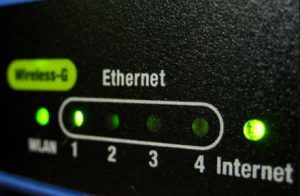
router status lights

Under most circumstances, you will want your routers to have the same SSID (bonus points if it makes your neighbors laugh), the same security and encryption (WPA2) protocols, and the same key/password.

These configurations will ensure that your Wi-Fi devices can automatically connect to your network and will roam to your second router when you go out of the range of your primary Wi-Fi network.

Should you ever have different SSIDs on the same network?

You can use different SSIDs and keys/passwords for each router if you like.  This creates a second wireless network with a different name.

This configuration does not enhance security, unless your router allows you to map each SSID to a different network connection using VLAN tagging.  When a device connects to an SSID, traffic is passed to the associated VLAN which has its own security settings.

This is an advanced topic, but can be simple to set up if your router supports “guest network” functionality. Using this feature, guest traffic can be isolated from the rest of the network or limited in the services (and speeds) it has access to.

Wrapping up

In conclusion, there are several reasons having two routers on your home network may be an improvement.

Remember one router is in charge and does all the talking to the outside world, but as far as your network’s name, the routers should usually be in agreement.  Plus, you can tell all your friends that you have a new tech upcycling hobby!