What is the best channel for my wireless router?

wifi logo

The best channel for your wireless router is the one that has the least amount of interference on it.

Strictly speaking, all channels are the same. Lower channels don’t have more bandwidth than higher channels or vise-versa.

In other words, if you were all alone on a desert island and it was just you, your laptop, and router, you would have the exact same experience on every channel.

This is because you would be the only device on your Wi-Fi network, and there would be no nearby Wi-Fi networks or other sources of interference.

Unfortunately, we don’t all live on islands by ourselves – free of frequency interference and bathed in high speed internet.

 How Wi-Fi works


tv remote channelWi-Fi is a shared communication medium. This means that all nearby wireless devices (yours, your kids or roommates, and even your neighbors) are competing for use of the same airspace.

Now within that airspace, there are multiple channels available for use – like channels on your television, each with something different going on.

Now think of the activity going on in a channel as a phone conversation. All nearby wireless devices that are on your channel (or an adjacent overlapping channel – more on this in a moment) are like a group of people that are all on a conference call. Only one person can speak at a time.

If there are only two or three people on the call, everyone can say what they need to say without much of a wait. But on a call with 50 participants for example, people are going to have to wait a long time to speak.

Wireless communication works the same way. The more devices, nearby networks, and interference there is, the slower and less reliable your Wi-Fi network will be.

Yes, the channel you pick matters, but only sometimes

Manually picking a wireless channel is becoming a thing of the past on 5GHz networks, but it still matters on your 2.4GHz network.

2.4GHz

If you are using a 2.4GHz radio, which most likely you are, (most older routers run exclusively at 2.4GHz and newer routers have dual-band 2.4GHz AND 5GHz radios) then you should be using one of the three non-overlapping channels.

This would be channel 1, 6, or 11

The reasoning for choosing 1/6/11 is complex, but suffice to say that all of the 2.4GHz channels overlap with each other to some degree.

What does overlapping mean? It means that devices in nearby channels will interfere with each other, even though they aren’t in the same channel. Kinda defeats the purpose of having channels, doesn’t it? Don’t get me started.

So why choose 1, 6, or 11? Because it is the most efficient strategy.

If you need 3 wireless routers or access points in the same room, putting one on channel 1, one on channel 6, and one on channel 11 is the best strategy. No other choice would allow all three devices to operate without interfering with each other.

Sure, there are other non-overlapping choices you could make – channel 2 and 10 don’t overlap, for example. But 1/6/11 is the only choice that will give you three independent channels.


2.4ghz wifi channels


OK I’m using a recommended channel, now what?

Using channel one, six, or eleven makes it a little easier to avoid adjacent-channel interference – but only if the other wireless networks near you are using the same strategy. The problem comes in when someone nearby is using one of the other channels (2-5 or 7-10).

For example, if you were being good and chose channel 1 or 6, but your neighbor next door is using channel 3 or 4, your neighbor’s network is still going to interfere with yours. You could try changing your router to use a different channel, but it may be difficult to find one that doesn’t interfere with someone else, especially in multifamily housing or apartments.

If everyone would only use 1, 6, or 11, the world would be a better place – but unfortunately this is not the case. Still, you can do your part by picking one of these non-overlapping channels.

5GHz

5GHz Wi-Fi is the future and you should be using it now if your router AND your devices support it. I say ‘AND’ because many devices still only support 2.4GHz networks.

For example, just thinking of a few devices in my house, my Chromecast, Sony smart TV, robotic vacuum (Roomba clone), and my laptop all lack 5GHz radios. Yep, they only operate at 2.4GHz. This means that I must leave my 2.4GHz radio enabled on my router, or I will not have connectivity with these devices.

radio channel frequency

Why is 5GHz better?

The 5GHz spectrum is wider and supports more channels. In the US, there are 25 channels in the 5GHz spectrum, and all of them are non-overlapping.

In addition to the higher availability of non-overlapping channels, 5GHz radios also support higher throughput (albeit at slightly shorter range due to the higher frequency) and technologies like multiuser-MIMO, which acts as a sort of channel bonding.


Disclaimer: This article applies to users in the United States. If you live in a different country, check with your national communications regulatory/authority, as the laws regarding the frequencies you can use will likely be at least a little bit different.

Why do I have to keep resetting my router?

Pretty much the first thing anyone does when they start having problems with their internet connection, is reboot their router. After all, rebooting your router usually fixes the problem – but why?

Why power cycle?

finger pushing power button

What is it about a reset (power cycle) that fixes problems? Well, there are several things.

For starters, a router is similar to a computer. It has a power supply, a processor (CPU), memory (RAM), and even an operating system (firmware).

Just like your computer needs a good reboot from time to time, so does a router.

Some routers are more well built than others and don’t require a reset as often, but for the most part any consumer-grade router is going to need a power cycle occasionally.

Consumer routers are generally built with lower quality hardware, slower speed components, and less rigorous software engineering standards compared to the routers that your ISP uses. As a result, they generally can’t go as long without a reset as their business-grade counterparts can.

Drain the electricity from circuitry

A proper power cycle involves disconnecting power from the device for 5-10 seconds, which allows for all of the circuitry in the router to fully discharge.

There are capacitors inside the router that take a few seconds to discharge, during which time, if you were to reapply power, the device would start back up but could continue to have issues since it wasn’t fully reset.

Memory in a computer system (or a router, in this case) gets fully erased when the power is cut. This is called volatile memory.

Don’t worry – there are also non-volatile memory types, which is why we don’t lose the configuration on our router as well when it is power cycled.

When power is re-applied, the router’s operating system boots from a fresh state, which fresh memory,  and is completely re-initialized so it can run at maximum capacity again.

IP address issues

After rebooting, the router also verifies that its’ current IP address from your ISP is valid (called renewing the IP) or if necessary, it requests a new IP address from your ISP.

Sometimes there is a bit of a disconnect between the IP address your ISP is providing and the IP address your router is using – the reboot will synchronize your router with your ISP again.

Bandwidth hogs are shut down (at least temporarily)

bandwidth hog

Sometimes, an internet connection is not working well because of a bandwidth hog. A bandwidth hog is defined as a person or device on your network that is uploading or downloading a large amount of data.

It could be something like a roommate downloading a new game on their Xbox, or something more systematic, like a computer downloading an automatic update.

This large upload or download creates a data contention issue, where other user’s data is slowed down because of the lack of bandwidth.

During a router reboot, bandwidth hogs lose the internet connection along with everyone else. They will usually resume their upload or download once the internet connection becomes available again, but sometimes (like in the case of a software update) they will wait a while to resume the data transfer.

Sometimes this delay is all you need to finish what you were doing online.

Wi-Fi frequencies are re-scanned

Some routers have a dynamic channel allocation feature where they survey the other nearby Wi-Fi networks to see what channels are in use, and then they pick the channel that is least populated or has the least amount of interference.

Power cycling your router will force your router to perform this adjustment as soon as the router has finished its reboot, as opposed to waiting for the router to do it on it’s own.

What are your options?

If you are otherwise fairly happy with your current router, you may wish to simply continue putting up with the minor inconvenience of occasionally resetting it. You could also automate the resets so that you don’t have to worry about doing it yourself.

keyboard reset button

Therapeutic reboots

Depending on the model of your router, you may be able to schedule it to reboot at the same time daily or weekly. I do this with my router – I have scheduled therapeutic reboots to occur every day at 2:00 AM, when everyone in the house is sleeping and won’t notice the brief interruption associated with the reboot.

If your router doesn’t support scheduled reboots, you can also get smart power switches that can turn the power off or on depending on the time of day. You could obtain one of these switches and then connect your router through it and accomplish the same goal.

Get a new router

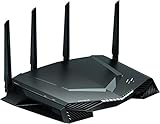
You could also just consider getting a new router. Here is a recommendation on a router that gets overwhelmingly positive reviews and most people report that it doesn’t need rebooting.

NETGEAR Nighthawk Pro Gaming XR500 Wi-Fi Router with 4 Ethernet Ports and Wireless Speeds Up to 2.6 Gbps, AC2600, Optimized for Low Ping
  • Minimize ping and maximize performance with four 1 Gigabit Ethernet ports for lag free, wired connectivity and 1.7 GHz dual core processor network efficiency.Beamforming : Implicit & Explicit Beamforming. LEDs : On/off LED lights option.
  • Amp up your Wi-Fi with AC2600 dual band router that delivers blazing fast speeds up to 2.6 Gbps
  • Put your gaming traffic in a designated express lane with advanced quality of service, bypassing network congestion and reducing lag spikes, jumps and jitters
  • Make every millisecond count by using Geo filtering to connect to the closest servers and players so you can respond and dominate
  • Monitor your network and game ping in real time so you can see who’s hogging the bandwidth by device and application

How to tell if a Router is bad

A broken router is no fun! After all, everything on your network depends on it – streaming, gaming, schoolwork, and real work all get impacted equally when your router stops working. Here are some steps to take (ordered from simple to advanced) to determine if your router is bad.

broken router

Start Simple:

Why do you think your router is the problem? Just because you can’t access the internet? The first, and often overlooked step, is to isolate the issue. Are all of the devices in your house affected, or just your computer? If only your computer is affected, the problem is likely not the router.

It is best to figure this out before spending time troubleshooting the wrong issue. If the problem is affecting your entire house, perhaps it is the router and you should continue troubleshooting.

Look at your router and start by checking the obvious things. Is it still plugged into the power outlet and is the outlet supplying power?

If the outlet is wired to a light switch, check to make sure that the switch is in the ‘on’ position. The same goes if the router is connected to a power strip or surge protector – make sure the power switch is on there too.

Also, check your breaker panel and verify that the breaker for that outlet hasn’t tripped.

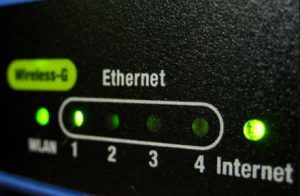
Now check the indicator lights on the router? Do they look normal? Most routers’ lights will flash to indicate activity on the network – are they flashing?

Are the status lights for the ethernet ports on your router lit up? You should see a ‘link’ light when a device such as a laptop or printer is plugged in to a specific port only. You shouldn’t, however, see port ‘link’ lights on ports that are not plugged in. Seeing a ‘link’ light on all ports, regardless of whether or not they are plugged in, is a classic sign that the router is having issues.

Is the router generating heat? Does it seem like a normal amount?

What about noise? Generally, consumer routers don’t make any noticable noise.

These types of observations may assist you in determining the health of your router.

Intermediate Troubleshooting:router status lights

Is your router functioning (passing traffic)? Try opening up a command window and seeing if your computer currently has an IP address. This can be done by running the ‘ipconfig’ command on Windows, or the ‘ifconfig’ command on Mac and Linux.

Most networks are configured to provide IP addresses from the router, so if your computer has a valid IP address, your router might be functioning okay. Now that you have your IP address, try pinging it (ping yourself). This should always be successful – if it’s not, it could indicate that your computer’s networking components aren’t functioning correctly and, again, is not the router’s fault.

Now, try pinging the IP address of your router (this is the gateway address listed in the ‘ipconfig’ or ‘ifconfig’ commands you ran earlier). See this article for more help with finding your router’s IP address.

If that is successful, try pinging another device on your network. If that works, your router seems to be passing traffic okay. Maybe the problem is isolated to your internet service?

Try pinging Google’s primary DNS server, 8.8.8.8. If that is successful, try pinging google.com. If you can ping 8.8.8.8 but not google.com, you are experiencing a DNS issue – but if you can also ping google.com, your internet should be functioning normally.

If your router seems to be okay but your internet service isn’t working, try rebooting your DSL/Cable modem or contact your ISP for assistance.


broken router

Ruling out the router for good:

If you still haven’t tracked down the problem, here is a good way to test your router: bypass it and connect your computer directly to your ISP’s device (typically a DSL modem, cable modem, or fiber ONT).

To do this, unplug the cable connecting to the WAN or Internet port on your router and connect it to your computer. Can you access the internet now?

If so, your router is almost certainly the issue since bypassing it got you back online.

Keep in mind that this test method will only work for some people – it depends on how your ISP configures your service. If your ISP uses static IP addressing or PPPoE, you would need to take additional steps to use this test method – simply plugging in directly will not work.

Advanced Troubleshooting:

router with heartbeat

If at this point you’ve established that the router is bad, you can either cut your losses and replace it, or you can attempt some advanced procedures that might possibly allow you to recover your router.

If you decide to continue troubleshooting the router, the next step would be to attempt to reset the router to defaults. This will wipe the current config from the router and reboot it into the factory-default state that it was in when you first opened the package.

The process for this operation differs from router to router, but typically involves pressing and holding the ‘reset’ button on the router down for up to 40 seconds. Sometimes, you have to power cycle the router while you are holding the reset button down – be sure to check your router’s documentation.

Be advised that if this procedure is successful, you will need to re-configure your router from scratch: set up your wireless network name, password, channel setting (if previously configured), administrator password, port forwarding (if applicable), etc.

Console Cable

Some routers have a special port (called a console port) that can be accessed with a cable like this. In many cases, the router casing has to be opened in order to access the console port, so this is not for the faint of heart.

Using the console port allows you to access the routers’ pre-boot/loading environment, which can sometimes be used to fix a router that won’t boot.

Since every router is different, I recommend doing some research to see if your router brand/model is equipped with a console port and what recovery techniques can be accomplished using it before you purchase a cable.

Flash It:

If a factory reset doesn’t work, the next step would be to attempt reloading the router’s firmware, aka ‘flashing’ it.

The concept of reloading firmware is usually used to replace a bricked router that has been broken due to being tinkered with. If your router failed in service (you weren’t doing anything to it when it failed), this probably won’t work, because the router is probably broken at the hardware level, not the software level. Still, you may want to continue – what do you have to lose?

The process for reloading the firmware differs from model to model and brand to brand – the procedures are too different and vast to name them all here. I’d suggest searching for something like “reload firmware brand_name model_number router” into your favorite search engine.

This should help you find specific instructions to follow. Keep in mind that attempting to “flash” your router’s firmware can cause your router to completely stop working – again, you might not have anything to lose, but I wanted to give that disclaimer none the less.

The basic jist of reloading the firmware involves uploading a new firmware file from your computer to the router. This can either be done via TFTP, or serially by connecting a special cable to the router. In some cases, you have to partially disassemble the router in order to get to the serial port.

Again, check your router’s documentation for this process, or online. Once the new fimware file has been uploaded, reboot the router and hope that it comes back to life!

Need a new router now?

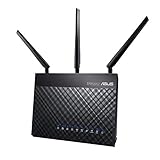
Our current pick for the best router (for most people) is the ASUS RT-AC68U. This router provides fast, stable performance, is loaded with features, and is available at a reasonable price.

ASUS RT-AC68U
  • Dual band with the latest 802; 11 AC 3x3 technology for combined speeds of up to 1900 Mbps.AiProtection : AiProtection Pro, AiProtection, Malicious site blocking, Two-Way IPS, Infected Device Prevention and Blocking. WAN : Internet connection Type - PPPoE, PPTP, L2TP, Automatic IP, Static IP. Dual WAN, 3G/4G LTE dongle, Android tethering, Port forwarding, Maximum port forwarding rule : 64, Port triggeringc, Maximum port triggering rule : 32, DMZ, DDNS, NAT Passthrough : PPTP, L2TP, IPSec, RTSP, H.323, SIP Passthrough,PPPoE relay.
  • 1 GigaHertz dual core CPU enables smart multitasking by dedicating separate lanes for Wi Fi and USB data; Network standard: IEEE 802; 11a, IEEE 802; 11B, IEEE 802; 11G, IEEE 802; 11N, IEEE 802; 11AC, IPv4, IPv6. Memory: 128 MB Flash; 256 MB RAM
  • Effortless router setup with the ASUSWRT web based interface; Dual band connectivity for compatibility and performance
  • Monitor and manage your network with ease from your mobile device using the intuitive ASUS router app
  • A protection powered by Trend Micro provides multi stage protection from vulnerability detection to protecting sensitive data; Please refer the installation manual and the user manual before use which is highly essential; Dc output: 19 Volt with maximum 1; 75 a current; Guest network: 2; 4 GigaHertz x 3, 5 GigaHertz x 3

How to access my router from the Internet

How to access my router from the Internet

Have you ever been away from home and needed to access something on your home computer or router?

It sounds convenient, right?

It sure would be easier than driving/flying back to your home, or asking a friend or family member to go to your house to retrieve what you’re looking for.

Well, never fear. In this guide, we’ll walk you through the process of setting up your router for accessing it remotely via the Internet.

Here’s how to access your router from the Internet:

  • Change your router’s Administrative password to a secure password (don’t leave it at default!)
  • Enable login capability to the router’s web interface from WAN (the Internet)
  • Enable Logging/Notifications (optional)
  • Determine your public IP address, or set up Dynamic DNS (preferred)
  • Test it (optional)
  • Log in!

If you aren’t very tech savvy, be sure to stick around until the end of the article where I discuss an alternate method that works just as well, but is easier to setup.

The need for remote access

There are many reasons someone would want to access their router from the Internet. Perhaps they need to change their Wi-Fi password for a roommate, set up remote access into their home network (called a VPN), or access files on a hard drive connected to their router.

Some people may not have a specific need to access their router from the Internet today, but they want to have the flexibility to do so in the future – since they know that they may well have the need at a later date.

Procedure:

Change your router’s admin password

A Wireless-N Access Point

Most routers have two different passwords – your WiFi password (which pretty much everyone is familiar with because they need to know it on a regular basis) and your admin password.

The admin password is what grants you access to the router’s management web interface, which is where you go to make changes to the router such as change/set IP addresses, change/set your WiFi network name (SSID), change/set your WiFi password, and much much more.

Most routers come out of the box with either a default password of something like ‘admin’ or ‘password’, which is very insecure. Some routers even have a blank admin password by default!

This isn’t a huge deal, because by default, the management interface is generally only accessible from a computer inside your network. However, we are about to enable access from the Internet, so you better believe it is important to change the password to something secure.

  1. Find the private IP of your router and enter it into a web browser. This is usually 192.168.1.1, 192.168.0.1, 10.0.1.1, or something similar (depends on the brand of your router). See here for help in identifying your router’s private IP.
  2. Enter your admin username and password. If you didn’t change these when you originally installed the router, they are likely still at the defaults. The username is usually ‘admin’ or ‘administrator’ and the password is usually ‘admin’ or ‘password’ by default. Again, this totally differs depending on the router manufacturer and model. If you can’t find it, I recommend searching Google for “[router model] default password”.
  3. Once you are logged in, you need to find the password setting. Usually there will be a “General”, “Admin”, or “Administrator” area of the settings, so try looking there. You may be able to change the username in addition to changing the password. This is recommended as it will greatly increase security. Just make sure you record it somewhere – if you forget it, you will have to reset the router to defaults to get back in.

Enable login from WAN

While you are still logged in to the router’s management interface, let’s enable remote login capability:

Person using a laptop

Generally the setting will be called something like “Allow login from WAN” or “Allow login from Internet”, but it differs widely between routers. This setting will usually live in the Advanced Settings area of the management interface.

Again, if you can’t find it, try searching Google for “[router model] login from wan”.

Enable logging and notifications

This step is entirely optional and your router may or may not support this feature. While still logged in, look for “logging”, “notifications”, or a similar section. It will likely appear under the “Advanced Settings” area or the “Admin” area.

Enable any logging you desire. This will cause the router to log events, such as when someone logs in to the management interface. You may even be able to have the router email you a notification when someone logs in – again this varies wildly by model and manufacturer.

This type of information is helpful from a security standpoint – so you will know if someone else manages to log in to your router over the internet (which would be bad!).

Determine your public IP address

I say “public” IP address, because your router actually has two IP addresses, and we are looking for the public IP, not the private IP.

Your IP address is exactly that – an address. It’s like your mailing address on the Internet. Your IP address is used anytime you want to send data to, or receive data from the Internet.

Since you are wanting to access your router from the Internet, you will need to know what your IP address is.

There are a couple of ways to figure this out:

Look on your router

One way to find your public IP address, is to log in to your router and have it show you your public IP address.

Once logged in, look for a screen or tab labeled “Status”. Every router is a little bit different, so you may have to look around a bit.

The status page will usually show your router’s status, including the “WAN” or “Internet” IP address.

Ask a website

The other easy method for determining your public IP, is to query a website.

There are many “What is my IP address?” type websites out there that will examine the traffic that your computer sends to it when the page is loading, determine the IP address your traffic is originating from, and display that address for you.

Google will tell you if you simply run a search for “what is my ip”. IP Chicken will also tell you:

ipchicken screenshot

Write it down

Once you have obtained your public IP address, write it down somewhere or email it to yourself. You will need it later.

Your IP address may change

It is not uncommon for your IP address to change from time to time, or even daily. Most residential providers use DHCP instead of static addressing – this means they can change your public address allocation at any time.


Usually, this isn’t a big deal and most people don’t even notice that their IP has changed. However, when you are going to be accessing your router from the Internet, it is important to be aware that your address could change.

I’ve seen some ISP’s using DHCP and your IP address doesn’t change for months or even years. I’ve also seen some ISP’s change your address every day.

My current ISP is like this – my IP address changes every 24 hours like clockwork. Dynamic DNS is absolutely critical for me because of this.

Thus, if you are leaving for a trip and hoping to access your router from the road, it is best to record your public IP just before you leave the house to maximize your chances that that will still be the IP assigned to your router when you attempt login.

Just be aware that if your IP address changes between the time you recorded it and the time you attempt to login remotely, you will not be able to login.

Professional Router installed in a Data Rack

For this reason, it is suggested to set up Dynamic DNS (DDNS), which will update automatically when your IP address changes. Thus, you will connect to your router using a hostname like “andrewshouse.no-ip.com” instead an IP address such as 73.48.231.17.

The DDNS server will automatically update the IP address that “andrewshouse.no-ip.com” resolves to every time it changes.

DDNS is an advanced topic and is only recommended to dabble in if you are a bit of an advanced user or if you are at least feeling adventurous!

Test it

If you want to be sure that remote login will work once you are away from home, it is best to test it beforehand.

To test, you will need to access a secondary internet connection other than your regular home broadband connection. This could be a neighbor’s house, using your internet connection at work, etc.

You could also temporarily enable the hotspot on your smartphone and tether your computer to it.

Sticky note with "run a usability test" written on it

Once you are on a different Internet connection:

  1. Open a web browser and enter your router’s public IP address (or DDNS fully qualified domain name) in the address bar, then press the enter key.
  2. You should be presented with a login prompt. If you are not, try entering “http://” or “https://” before the address and press enter again. If it still doesn’t work, you may also need to append a colon and port number behind the address, such as “:8443”.
  3. Once prompted, enter your management credentials and log in!

Log in

You are now ready to log in remotely. Regardless of where you travel to, as long as you have an Internet connection, you should be able to log in.

Hopefully you already tested your ability to login as shown above. The procedure for logging in when you are actually away from home will be the same.

An easier way

If you are less techie and are simply looking for a solution that works, you may also want to research setting up remote access to a computer at your home via a service such as TeamViewer.

Teamviewer Windows App Screenshot

TeamViewer and similar services can be set up for free to access the computer in question over the internet.

The downside, is that the computer has to be left on and connected to your home network at all times in order to work.

The upside, is that it requires no special configuration on your router, and Dynamic DNS doesn’t need to be set up. Simply connect to the remote computer via the TeamViewer app on your smartphone, PC, or Mac, and TeamViewer takes care of the rest.

If you still needed to access your router, you could launch a web browser on the remote PC using TeamViewer, and then login to the router’s private IP address normally as if you were at home.

This solution is simpler, but also relies on TeamViewer to be working in order to function, so there are pros and cons for sure.

Regardless of which method you choose, Good luck!

What is my IP address for my router?

Did you know that your router has two IP addresses? We’ll show you how to find out what they are.

Private vs Public IP Addressesprivate public road sign

Your home network (and most networks in general) consist of both private and public IP addresses. What’s the difference?

Public addresses can be used on the Internet, and private addresses can’t.

However, that’s not to say that private addresses don’t have their place. One of the main reasons private addresses exist, is because there are a limited number of public addresses.

In the current version of the Internet Protocol (IPv4), there are only about 4.3 billion public IP addresses. That may sound like a lot, but consider the fact that that number of addresses must provide internet access to every device on planet Earth, and suddenly its’ not such a big number.

There is a new version of the Internet Protocol coming (IPv6), which will drastically increase the number of public IP addresses available. However, global adoption of the new version has been very, very slow. It appears that the world will continue to use IPv4 for the foreseeable future.

Due to the fact that there is a shortage of pubic addresses, most people only get one public address from their ISP for their entire household. This addresses then goes on your router, and everything inside your home (computers, tablets, phones, game consoles, smart TV’s, thermostats, etc) gets a private address from your router instead of getting its’ own public address.

ip address list

Your router also gets one of these private addresses so it can communicate with the devices in your home. It then performs a function called Network Address Translation (NAT) to translate traffic to/from devices on your network to/from the Internet using a combination of its’ private and public addresses.

Without NAT, you would only be able to use the internet on one device at a time because you only have one public IP address. How inconvenient!

With NAT, it’s like your router is bi-lingual and is translating a conversation between two people that don’t speak the same language. Your router must speak both languages to ensure that communication between the two parties is successful.

In this case, the two “languages” are the routers’ public IP address and private IP address.

So, your router is actually using two IP addresses at all times. It uses its’ public IP to communicate with devices on the Internet, and it uses its’ private IP to communicate with devices on your home network.

How do you tell the difference between public and private addresses?

Public and private addresses share the same format – four numbers (0 through 255) separated by three dots, such as 192.168.0.1.

Since they look the same, is there a way to tell if an address is public or private just by looking at it?

Turns out the answer is yes. There is a standard (RFC1918) that defines IP addresses that are reserved as private. They are:

  • 10.0.0.0/8
  • 172.16.0.0/12
  • 192.168.0.0/16

Pretty much everything outside of these reserved ranges is public.

So, if you see an IP address beginning with 10, 172, or 192, chances are good that it is a private address. If it begins with any other number, it is a public IP address.

Why do you need your routers’ IP address?

Here are just a few reasons why you would need to know your routers’ IP addresses:

Reasons to need your private address

  • router admin ip address

    If you need to change the settings on your router – perhaps you want to change the name of your Wi-Fi network, modify your firewall settings, or change your Wi-Fi password. You will need to know your router’s private address in all of these cases so that you can login to your router and make the necessary changes.

  • If you need to configure a device on your network with a static IP address – in this case the device won’t be configured automatically, so you’ll need to know your router’s private IP address – which will be entered into the ‘Default Gateway’ box in your computers’ IP address settings.

Reasons to need your public address

  • If you need to access your home network remotely over the Internet – Maybe you are wanting to set up remote desktop to access your home computer from the office. Or, perhaps you are wanting to monitor a security camera in your home while you are on vacation.
  • If you are hosting a server of some type – Perhaps you are running a file server or a game server – you will need to know your public IP address so that you can give it out to someone that would need to access your server remotely.

How to find your routers’ private IP:

router with admin ip

Note: The vast majority of consumer-grade routers will use either 192.168.0.1 or 192.168.1.1 as their private address. Unless your router has been set up with a custom configuration, it is highly likely that one of these IP addresses will be assigned to your router.

Windows XP/Windows 7/Windows 10

  1. Click on the Start Menu (or press the ‘Windows’ key on your keyboard)
  2. Type ‘cmd’ (abbreviation for “command prompt”)
  3. Press ‘Enter’start button command prompt
  4. A black command prompt box will appear. Type in the word ‘ipconfig’ and press enter.

ipconfig output

You will see a bunch of information scroll by and may have to scroll back up a bit to find what you are looking for – which is the Default Gateway IP address of your current network connection. In the example above, it is 192.168.1.1.

The default gateway is the address that your computer sends data to if it needs to go out to the Internet. This is the private IP address of your router.

MacOS

  1. Click on the ‘Apple’ menu in the top left corner of your screen
  2. Select ‘System Preferences’apple menu system preferences
  3. From the System Preferences menu, click on the ‘Network’ iconsystem preferences network icon
  4. Select your active network adapter on the left side

You will see IP address information appear on the right side. Look for the section that shows ‘Router:’.

network preferences

This is the address that your computer sends data to if it needs to go out to the Internet. This is the private IP address of your router.

How to find your routers’ public IP:

This one is pretty easy. From any device on your home network, you just need to check a website that will retrieve the public IP address your traffic is coming from and report it back to you.

There are countless free sites out there that provide this service. Here are a few:

IP Chicken

What is my IP

Google – Simply run a search with the words ‘What is my IP’ and Google will tell you.

ipchicken screenshot

What is the best Router for Google Fiber?

linksys gaming routerThe need for speed

If you are part of the small percentage of Americans that are lucky enough to live in a Google Fiber coverage area, you may be wondering, what is the best router to buy for use with your new Google Fiber service?

After all, if you are going to be getting an ultra high-speed direct fiber service to your home, you want to make sure that there are no bottlenecks in your internal network, right?

This is excellent thinking, and as a network professional, I had the same thoughts when considering Google Fiber.

Traditionally, we’ve been exposed to slow internet connections such as cable and DSL services. Typically, these services run at speeds of 25Mbps to 50Mbps, or maybe something closer to 100Mbps if you are lucky.

The speed of your internet service is limited by the slowest link in the chain. Traditionally, this was always your broadband internet connection, but that is changing.

Today, with Google Fiber and similar fiber-to-the-home (FTTH) services, you can get up to 1000Mbps (1 Gig) service at your home. Suddenly, the slowest link in the chain can easily become a device on your internal network, such as your router.

Some people still run routers that max out at 100Mbps. They literally don’t support Gigabit. And many people don’t realize it.

Google Fiber includes a router

Here’s the rub for Google Fiber subscribers: Their service includes a Wi-Fi router whether they like it for not. So, some people may not wish to buy a router for their Google Fiber service. After all, you technically already have everything you need.

When Google Fiber is installed at your home, there are at least two pieces of equipment provided. A “Fiber Jack”, which is really just a micro ONT (Optical Network Terminal) which terminates the GPON signal coming from the OLT (Optical Line Terminal) port at the nearest hut, outside plant cabinet, or data center.

Your Fiber Jack then connects to a little black box which Google has affectionately dubbed a “Network Box” (who named these things?). The network box acts as your router, terminating the service and allowing you to share the connection throughout your house.

It also supports WiFi, has a firewall, allows basic port forwarding, etc. Many of the features of your average consumer-grade router are supported by the Network Box.

What’s the problem?what chat bubble

The problem, is that per Google, the Network Box is required. Unfortunately, you can’t just plug your shiny new Netgear/Linksys/TP-Link router into the Fiber Jack and get online. You must use the Network Box – which is why the selection of a new router may be unnecessary (your traffic still goes through the Network Box, regardless of what you plug in).

So, for some users, there is no real need to use a regular router with their Google Fiber service – the Network Box is enough.

What if I want to use an aftermarket router?

Google says that you can still plug your router into the Network Box and use it, and indeed you can. You can unbox your new aftermarket router and install it just as you would with any other type of broadband internet service from Comcast, Cox, Centurylink, etc.

We should note that installing a router behind the Network Box will create a scenario where all of your traffic is getting NAT’d twice. This means that your traffic is getting translated from one type of IP address to another, twice. Usually this is only done once, but most users won’t notice a difference with their traffic being double NAT’d.

What to look for in a router to use with Google Fiber

Since you are buying a service that is high-speed, low-latency, and highly reliable, we recommend that you don’t skimp if you decide to purchase an aftermarket router. Specifically, you want a router that supports a Gigabit WAN port, the newest WiFi standard (802.11AC), and has a dual-core or better processor.

The following routers are our picks for use with Google Fiber. Any of them will work well with the service, though some are pricier than others.

Great performance at an affordable price!
NETGEAR Nighthawk Smart Wi-Fi Router, R6700 - AC1750 Wireless Speed Up to 1750 Mbps | Up to 1500 Sq Ft Coverage & 25 Devices | 4 x 1G Ethernet and 1 x 3.0 USB Ports | Armor Security
Supports Gigabit connection to Google Network Box
802.11AC Support
Beamforming
Processor Cores
2
Prime
-
Linksys EA7500 Dual-Band Wi-Fi Router for Home (Max-Stream AC1900 MU-Mimo Fast Wireless Router)
Supports Gigabit connection to Google Network Box
802.11AC Support
Beamforming
Processor Cores
2
Prime
-
NETGEAR R9000-100NAR Nighthawk X10 AD7200 802.11ac/ad Quad-Stream WiFi Router - Certified Refurbished
Supports Gigabit connection to Google Network Box
802.11AC Support
Beamforming
Processor Cores
4
Prime
-

But surely there is a way to bypass the Network Box?!

If you are a power user and feeling ambitious, there are supposedly ways to use Google Fiber’s service without a Network Box. This typically involves use of a Ubiquiti Edgerouter or setting up a PFSense box, and is completely unsupported by Google.

That information is beyond the scope of this article due to it’s advanced nature, so I’m not covering it here. But you should know that it is possible.