Best router for 200Mbps Internet

For people with a 200Mbps connection to the internet, congratulations. That is a pretty fast connection. It is definitely not the quickest, with services from some cable and fiber to the home based providers clocking in at 1Gig or 2Gig service, but it is also much quicker than the 2017 national average broadband rate of 18.75Mbps.

For most people, 200Mbps is plenty of bandwidth, even for large households. However, you’ll want to make sure you select the right router to go along with your new service to ensure that your router doesn’t hold you back and thus prevent you from geting the speeds you are paying for.

What to look for

Here is a short checklist of features you should look for for use with your 200Mbps Internet. The RT-AC68U supports all of them.

  • Stable Operation
  • Gigabit Ethernet
  • 802.11AC Wi-Fi Support
  • Dual-core CPU or better
  • Monitoring capabilities (optional, but nice to have!)
Our Pick
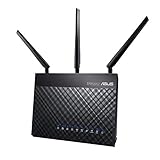
ASUS AC1900 WiFi Router (RT-AC68U) - Dual Band Gigabit Wireless Internet Router, Gaming & Streaming, AiMesh Compatible, Included Lifetime Internet Security, Adaptive QoS, Parental Control
NETGEAR R9000-100NAR Nighthawk X10 AD7200 802.11ac/ad Quad-Stream WiFi Router - Certified Refurbished
Excellent performance at an affordable price!
NETGEAR Nighthawk Smart Wi-Fi Router, R6700 - AC1750 Wireless Speed Up to 1750 Mbps | Up to 1500 Sq Ft Coverage & 25 Devices | 4 x 1G Ethernet and 1 x 3.0 USB Ports | Armor Security
Linksys EA7500 Dual-Band Wi-Fi Router for Home (Max-Stream AC1900 MU-Mimo Fast Wireless Router)
Gigabit Ethernet Supported
Wi-Fi Standard
802.11AC
802.11AD
802.11AC
802.11AC
CPU
1GHz Dual Core
1.7GHz Quad Core
1GHz Dual Core
1.4GHz Dual Core
Number and Type of Antennas
3 (external)
4 (external)
3 (external)
3 (external)
Range
Speed Rating
AC1900
AD7200
AC1750
AC1900
Max Wi-Fi Throughput
Prime Status
-
-
-
Our Pick
ASUS AC1900 WiFi Router (RT-AC68U) - Dual Band Gigabit Wireless Internet Router, Gaming & Streaming, AiMesh Compatible, Included Lifetime Internet Security, Adaptive QoS, Parental Control
Router
Gigabit Ethernet Supported
Wi-Fi Standard
802.11AC
CPU
1GHz Dual Core
Number and Type of Antennas
3 (external)
Range
Speed Rating
AC1900
Max Wi-Fi Throughput
Prime Status
NETGEAR R9000-100NAR Nighthawk X10 AD7200 802.11ac/ad Quad-Stream WiFi Router - Certified Refurbished
Router
Gigabit Ethernet Supported
Wi-Fi Standard
802.11AD
CPU
1.7GHz Quad Core
Number and Type of Antennas
4 (external)
Range
Speed Rating
AD7200
Max Wi-Fi Throughput
Prime Status
-
Excellent performance at an affordable price!
NETGEAR Nighthawk Smart Wi-Fi Router, R6700 - AC1750 Wireless Speed Up to 1750 Mbps | Up to 1500 Sq Ft Coverage & 25 Devices | 4 x 1G Ethernet and 1 x 3.0 USB Ports | Armor Security
Router
Gigabit Ethernet Supported
Wi-Fi Standard
802.11AC
CPU
1GHz Dual Core
Number and Type of Antennas
3 (external)
Range
Speed Rating
AC1750
Max Wi-Fi Throughput
Prime Status
-
Linksys EA7500 Dual-Band Wi-Fi Router for Home (Max-Stream AC1900 MU-Mimo Fast Wireless Router)
Gigabit Ethernet Supported
Wi-Fi Standard
802.11AC
CPU
1.4GHz Dual Core
Number and Type of Antennas
3 (external)
Range
Speed Rating
AC1900
Max Wi-Fi Throughput
Prime Status
-

Our Pick

Our recommendation for a router for 200Mbps Internet service is:

ASUS RT-AC68U

ASUS RT-AC68U
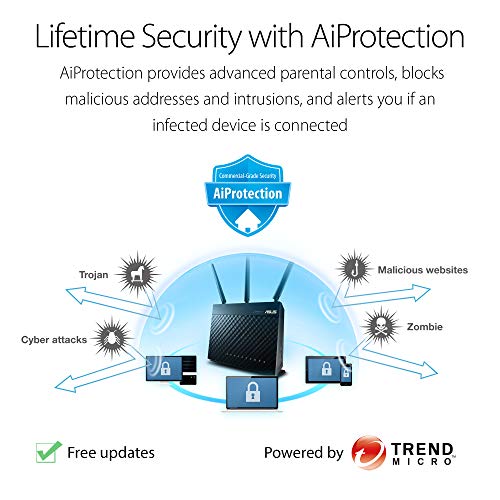
  • Dual band with the latest 802; 11 AC 3x3 technology for combined speeds of up to 1900 Mbps.AiProtection : AiProtection Pro, AiProtection, Malicious site blocking, Two-Way IPS, Infected Device Prevention and Blocking. WAN : Internet connection Type - PPPoE, PPTP, L2TP, Automatic IP, Static IP. Dual WAN, 3G/4G LTE dongle, Android tethering, Port forwarding, Maximum port forwarding rule : 64, Port triggeringc, Maximum port triggering rule : 32, DMZ, DDNS, NAT Passthrough : PPTP, L2TP, IPSec, RTSP, H.323, SIP Passthrough,PPPoE relay.
  • 1 GigaHertz dual core CPU enables smart multitasking by dedicating separate lanes for Wi Fi and USB data; Network standard: IEEE 802; 11a, IEEE 802; 11B, IEEE 802; 11G, IEEE 802; 11N, IEEE 802; 11AC, IPv4, IPv6. Memory: 128 MB Flash; 256 MB RAM
  • Effortless router setup with the ASUSWRT web based interface; Dual band connectivity for compatibility and performance
  • Monitor and manage your network with ease from your mobile device using the intuitive ASUS router app
  • A protection powered by Trend Micro provides multi stage protection from vulnerability detection to protecting sensitive data; Please refer the installation manual and the user manual before use which is highly essential; Dc output: 19 Volt with maximum 1; 75 a current; Guest network: 2; 4 GigaHertz x 3, 5 GigaHertz x 3

What we like about the ASUS RT-AC68U

ASUS AC1900 WiFi Router (RT-AC68U) - Dual Band Gigabit Wireless Internet Router, Gaming & Streaming, AiMesh Compatible, Included Lifetime Internet Security, Adaptive QoS, Parental Control

The RT-AC68U has proven itself as a flagship router that can route packets at line rate (1000Mbps) without issue. This router will easily work if you end up upgrading to a Gigabit service in the future. This is good for people that like to make future-proof electronics purchases.

It is also a very stable router – It doesn’t need to be rebooted all the time, like some routers.

We also like the monitoring capabilities that can be accessed  from the ASUS app on your smartphone. You can use the app to see what is going on on your network and who/what is using bandwidth.

Finally, we like that the router supports the ASUS AirMesh feature, which allows you to connect multiple ASUS routers to your network in order to increase Wi-Fi coverage in your home. This is helpful for people with large homes or people that have issues with dead spots in their home.

Think twice before you use that old router

Make especially sure that you get a router with Gigabit Ethernet ports. Many of the older Wireless-N (802.11N) and Wireless-G (802.11B/G) routers are only equipped with 10/100Mbps Ethernet ports.

This means that the WAN port on the router can’t pass data any faster than 100Mbps. This would mean that you could only get half of the speed you are paying for if you end up using one of these routers with your 200Mbps service!

Many people think that they can just re-use an old router and it will work fine. That may be true, but in the current environment, broadband speeds are exploding.

No one used to show any concern about using a router limited at 100Mbps because broadband speeds were only in the 25-50Mbps range. Now that broadband speeds are quickly surpassing 100Mbps, you need to pay special attention to the maximum speed of the equipment on your local network, since it could quickly become the bottleneck instead of your internet connection.

This rule also applies to other devices on your local network. If you are using switches to distribute wired Ethernet to other parts of your home or to simply expand beyond the 4 wired ports provided by your router, you need to make sure that those switches also have Gigabit support.

Otherwise, you will max out at 100Mbps on any devices that connect through them.

Best Router for Charter Spectrum

What is the Best Router for Charter Spectrum?

Have Charter Spectrum Internet service at your home or business and looking to pair it with the best router? Have no fear – we are going to break down the best routers available so you can make an informed decision and get the best “bang for your buck”.

Our Pick - Extreme Performance and Highly Reliable
ASUS AC3100 WiFi Gaming Router (RT-AC88U) - Dual Band Gigabit Wireless Router, WTFast Game Accelerator, Streaming, AiMesh Compatible, Included Lifetime Internet Security, Adaptive QoS, MU-MIMO
Runner Up - Excellent Performance at a good price
NETGEAR Nighthawk Smart Wi-Fi Router, R6700 - AC1750 Wireless Speed Up to 1750 Mbps | Up to 1500 Sq Ft Coverage & 25 Devices | 4 x 1G Ethernet and 1 x 3.0 USB Ports | Armor Security
Linksys EA7500 Dual-Band Wi-Fi Router for Home (Max-Stream AC1900 MU-Mimo Fast Wireless Router)
D-Link WiFi Router, AC2600 MU-MIMO Dual Band Gigabit 4K Streaming and Gaming with USB Ports, 4x4 Wireless Internet for Home (DIR-882-US), Black
Gigabit Capability (for connections over 100M to Charter Spectrum)
WiFi Standard
802.11AC
802.11AC
802.11AC
802.11AC
Dual Band
Number of Ethernet ports
8
4
4
4
CPU
1.4GHz Dual Core
1GHz Dual Core
1.4GHz Dual Core
880MHz Dual Core
Number and Type of Antennas
4 (external)
3 (external)
3 (external)
4 (external)
Speed Rating
AC3100
AC1750
AC1900
AC2600
-
-
Our Pick - Extreme Performance and Highly Reliable
ASUS AC3100 WiFi Gaming Router (RT-AC88U) - Dual Band Gigabit Wireless Router, WTFast Game Accelerator, Streaming, AiMesh Compatible, Included Lifetime Internet Security, Adaptive QoS, MU-MIMO
Router
Gigabit Capability (for connections over 100M to Charter Spectrum)
WiFi Standard
802.11AC
Dual Band
Number of Ethernet ports
8
CPU
1.4GHz Dual Core
Number and Type of Antennas
4 (external)
Speed Rating
AC3100
Runner Up - Excellent Performance at a good price
NETGEAR Nighthawk Smart Wi-Fi Router, R6700 - AC1750 Wireless Speed Up to 1750 Mbps | Up to 1500 Sq Ft Coverage & 25 Devices | 4 x 1G Ethernet and 1 x 3.0 USB Ports | Armor Security
Router
Gigabit Capability (for connections over 100M to Charter Spectrum)
WiFi Standard
802.11AC
Dual Band
Number of Ethernet ports
4
CPU
1GHz Dual Core
Number and Type of Antennas
3 (external)
Speed Rating
AC1750
-
Linksys EA7500 Dual-Band Wi-Fi Router for Home (Max-Stream AC1900 MU-Mimo Fast Wireless Router)
Gigabit Capability (for connections over 100M to Charter Spectrum)
WiFi Standard
802.11AC
Dual Band
Number of Ethernet ports
4
CPU
1.4GHz Dual Core
Number and Type of Antennas
3 (external)
Speed Rating
AC1900
-
D-Link WiFi Router, AC2600 MU-MIMO Dual Band Gigabit 4K Streaming and Gaming with USB Ports, 4x4 Wireless Internet for Home (DIR-882-US), Black
Gigabit Capability (for connections over 100M to Charter Spectrum)
WiFi Standard
802.11AC
Dual Band
Number of Ethernet ports
4
CPU
880MHz Dual Core
Number and Type of Antennas
4 (external)
Speed Rating
AC2600

About Charter Spectrum

Charter Spectrum logo

Spectrum from Charter Communications is a brand of broadband Internet services offered to business and consumer customers to roughly 25 million people across 48 states.

Spectrum service is primary delivered across a coaxial cable system, using infrastructure originally designed to bring cable TV to homes. Charter also delivers service in some areas via fiber optic cabling.

They have invested heavily in the infrastructure of their network and are running the latest DOCSIS 3.0 or 3.1 standards in many areas, enabling them to offer Gigabit speeds (and beyond) to their subscribers.

Spectrum’s speed offerings differ a bit depending on the service area, but in general they offer three tiers

  • a base tier that runs approximately 60-100Mbps downstream and 5-10Mbps upstream
  • a middle tier that runs approximately 300-400Mbps downstream and 20Mbps upstream
  • a top tier that runs at 1000Mbps (Gigabit) downstream and 35Mbps upstream.

If you’re saying to yourself “Wow, that is not a lot of upstream bandwidth compared to the downstream amount you get”, you’d be right.

Fortunately, most users down’t need a large amount of upstream capacity. Power users may notice a pinch though, which is why fiber-based services that are usually available as a symmetrical service are preferred or cable-based providers such as Charter.

What to look for in a router for your Charter Spectrum Internet service

man using a tablet

There are a ton of routers out there and most of them are very similar in the standards they support and the features they offer. For the most part, various features don’t make much of a difference.

There are, however a few things you should definitely make sure your new router for Charter Spectrum supports, and those are:

  • The newest Wi-Fi standard, 802.11AC (aka, Wi-Fi 5) offers a host of improvements over previous standards. Don’t buy a Wireless-N router, and certainly don’t buy a Wireless B/G router (if you can even find someone selling them still)
  • Gigabit Ethernet ports – Since your Spectrum service will likely be running at a minimum of 100Mbps and possibly as high as 1Gbps, make sure your router has Gigabit Ethernet ports. Many older routers have 10/100Mbps Ethernet ports, meaning the router can pass a maximum of 100Mbps. You don’t want to be paying for 100+Mbps speeds and not be able to use it because your older router can’t hack it.
  • A proven track record of reliability – Make sure your new router is stable and doesn’t need to be rebooted constantly in order to perform. Some routers do!
  • Sufficient number of antennas providing decent signal coverage – some router’s just don’t have powerful or well designed enough radios and thus are unable to provide decent coverage, which ensures that Wi-Fi users will have a strong, reliable signal that provides decent speeds at various ranges.

Best Router for Charter Spectrum – ASUS RT-AC88U

You will be happy with any of the four routers highlighted above – but of course there can only be one winner. In this roundup, we chose the ASUS RT-AC88U.

You’re probably not surprised to see that it’s not the cheapest router available either. Well, unfortunately, quality, performance, and reliability come at a cost.

ASUS RT-AC88U
  • 1024 Qam technology 80 percent faster 5 GigaHertz at up to 2100 Mbps, 66 percent faster 2. 4 GigaHertz at up to 1000 Mbps; utilities: firmware restoration
  • 33 percent greater 2. 4 GigaHertz coverage with a 4 transmit, 4 receive (4T4R) antenna design, able to reach our widest ever coverage up to 5000 square feet
  • Expansive connectivity options: with exclusively has 8 x Gigabit LAN ports for up to eight Ethernet compatible devices to connect simultaneously
  • Powerful 1. 4 GigaHertz dual core processor, faster USB data transfers enjoy up to over 100 MB/s Speed and the router download/UPLOAD speed (WAN LAN throughput) up to 1. 8 Gaps
  • Smart Connect automatically chooses the best band available for you, Dimensions: 11. 8 x 7. 4 x 3. 3 inch (WDHP).

What we like about the RT-AC88U

Excellent Range – Thanks to the four external omni-directional antennas and a plethora of improvements built in to the 802.11AC standard, this router provides some of the longest range and most reliable connections among consumer-grade Wi-Fi routers.

If your house is huge, you may be better off installing multiple wireless access points instead of trying to get one powerful router. Many people don’t understand that wireless communication is a two-way street. Your phone, tablet, laptop, etc must not only receive data from your router, but it must also transmit it back. So even if your router transmits at a high strength, there is no guarantee that your device will be able to also transmit at a high enough signal strength to ensure a reliable connection. Having multiple access points in your home, where your device can associate with the closest one, is a better option for people needing to cover really large areas.

A plethora of Ethernet ports – This router has a whopping eight LAN ports. Most routers only have four LAN ports.

Many people have too many devices to plug in and need to add an Ethernet Switch such as this one to give them more Ethernet ports. This router can eliminate that need, since eight ports is probably enough for most people.

Good Management Options – ranging from an Intuitive WebUI to a handy mobile app. Advanced users really like AsusWRT-Merlin, a robust (and completely optional) firmware that supports many advanced features.

Good QoS controls – The Quality of Service controls are straight forward and actually work, allowing you to prioritize some traffic types over others (such as prioritizing Voice over IP traffic over BitTorrent traffic).

Guest Wi-Fi capability – This router features the ability to easily create a Guest Wi-Fi network – a separate network for guests with a different name, different password, and no ability to access resources on your private network (only ability to go out to the Internet).

What we don’t like about the RT-AC88U

Pricey – This router definitely carries a bit of a premium price tag.

Physical size – The AC88U is larger than most routers and many users report that it can generate a lot of heat.

Not novice friendly – While we really like the long list of advanced features that this router supports (especially if you flash the Merlin firmware), this router is not as friendly for novices as many routers on the market.

Potential for radio failure – Some users have reported individual bands (either 2.4GHz or 5GHz) failing or stopping working intermittently and requiring the router to be RMA’d. While these seem to be isolated cases (not a manufacturing defect), the failure rate seems to be abnormally high based on user reviews.

laptop and plant on tabletop

Runner Up – Netgear R6700

The R6700 from Netgear is one of my favorite routers and I recommend it to our readers frequently. Its performance and reliability relative to its affordable price point makes it the obvious choice for runner-up in this round up.

NETGEAR Nighthawk Smart Wi-Fi Router, R6700 - AC1750 Wireless Speed Up to 1750 Mbps | Up to 1500 Sq Ft Coverage & 25 Devices | 4 x 1G Ethernet and 1 x 3.0 USB Ports | Armor Security
  • Recommended for up to 25 devices: Reliably stream videos, play games, surf the internet, and connect smart home devices
  • Wired Ethernet ports: Plug in computers, game consoles, streaming players, and other nearby wired devices with 4 x 1 gigabit Ethernet ports
  • Loaded with advanced technology: Designed with a 1GHz dual core processor, 3 amplified antennas, Beamforming plus, Dynamic QoS, Smart Connect, and more
  • USB connections: Share a storage drive or printer with any connected device or create a personal cloud storage to access from anywhere, using the 1 x 3.0 USB port
  • Safe & secure: Supports WPA2 wireless security protocols. Includes Guest Wi-Fi access, DOS, Firewall, VPN, and more

This router may not have all of the features or as many LAN ports as more expensive routers, but it can handle a Gigabit Internet connection from Charter Spectrum without any problems.

What we like about the R6700

Gigabit Ethernet ports – The Ethernet ports on this router are all Gigabit, meaning you won’t be limited to 100Mbps like some routers.

Current Generation (Wi-Fi 5) support – This router supports the current 802.11AC specification so you get all of the benefits of the current standard and aren’t stuck on the previous Wi-Fi 4 standard, 802.11N.

Excellent Coverage – The Wi-Fi coverage from this router is excellent, providing a strong and reliable signal in the far reaches of your medium to large sized home (assuming the router is placed in a central location).

Reliability / Stability – Sampling a large number of reviews online, most users report that this router is quite reliable: not frequently experiencing drop-outs in service or requiring reboots.

Advanced Features – Make no mistake about it, this router supports its own suite of advanced features. Most notably, the Quality of Service (QOS) and Parental Control features generally work quite well.

What we don’t like about the R6700

Netgear Warranty Support – If you do run into an issue and need support, many people have reported that Netgear’s tech support is not the greatest. Some people have even said they had to pay money to Netgear for a support contract before they could start an RMA on a router that was still under warranty. Not Cool!

Advanced Firmware Incompatibility – Some versions of the R6700 are not compatible with advanced firmware, such as DD-WRT. As of this writing, v1 and v3 are compatible, but v2 is not.

Wrapping Up

Regardless of which WiFi router you buy to go along with your Charter Spectrum Internet, as long as you follow our guidelines listed at the top of this post, you should be okay.

Our Pick - Extreme Performance and Highly Reliable
ASUS AC3100 WiFi Gaming Router (RT-AC88U) - Dual Band Gigabit Wireless Router, WTFast Game Accelerator, Streaming, AiMesh Compatible, Included Lifetime Internet Security, Adaptive QoS, MU-MIMO
Runner Up - Excellent Performance at a good price
NETGEAR Nighthawk Smart Wi-Fi Router, R6700 - AC1750 Wireless Speed Up to 1750 Mbps | Up to 1500 Sq Ft Coverage & 25 Devices | 4 x 1G Ethernet and 1 x 3.0 USB Ports | Armor Security
Linksys EA7500 Dual-Band Wi-Fi Router for Home (Max-Stream AC1900 MU-Mimo Fast Wireless Router)
D-Link WiFi Router, AC2600 MU-MIMO Dual Band Gigabit 4K Streaming and Gaming with USB Ports, 4x4 Wireless Internet for Home (DIR-882-US), Black
Gigabit Capability (for connections over 100M to Charter Spectrum)
WiFi Standard
802.11AC
802.11AC
802.11AC
802.11AC
Dual Band
Number of Ethernet ports
8
4
4
4
CPU
1.4GHz Dual Core
1GHz Dual Core
1.4GHz Dual Core
880MHz Dual Core
Number and Type of Antennas
4 (external)
3 (external)
3 (external)
4 (external)
Speed Rating
AC3100
AC1750
AC1900
AC2600
-
-
Our Pick - Extreme Performance and Highly Reliable
ASUS AC3100 WiFi Gaming Router (RT-AC88U) - Dual Band Gigabit Wireless Router, WTFast Game Accelerator, Streaming, AiMesh Compatible, Included Lifetime Internet Security, Adaptive QoS, MU-MIMO
Router
Gigabit Capability (for connections over 100M to Charter Spectrum)
WiFi Standard
802.11AC
Dual Band
Number of Ethernet ports
8
CPU
1.4GHz Dual Core
Number and Type of Antennas
4 (external)
Speed Rating
AC3100
Runner Up - Excellent Performance at a good price
NETGEAR Nighthawk Smart Wi-Fi Router, R6700 - AC1750 Wireless Speed Up to 1750 Mbps | Up to 1500 Sq Ft Coverage & 25 Devices | 4 x 1G Ethernet and 1 x 3.0 USB Ports | Armor Security
Router
Gigabit Capability (for connections over 100M to Charter Spectrum)
WiFi Standard
802.11AC
Dual Band
Number of Ethernet ports
4
CPU
1GHz Dual Core
Number and Type of Antennas
3 (external)
Speed Rating
AC1750
-
Linksys EA7500 Dual-Band Wi-Fi Router for Home (Max-Stream AC1900 MU-Mimo Fast Wireless Router)
Gigabit Capability (for connections over 100M to Charter Spectrum)
WiFi Standard
802.11AC
Dual Band
Number of Ethernet ports
4
CPU
1.4GHz Dual Core
Number and Type of Antennas
3 (external)
Speed Rating
AC1900
-
D-Link WiFi Router, AC2600 MU-MIMO Dual Band Gigabit 4K Streaming and Gaming with USB Ports, 4x4 Wireless Internet for Home (DIR-882-US), Black
Gigabit Capability (for connections over 100M to Charter Spectrum)
WiFi Standard
802.11AC
Dual Band
Number of Ethernet ports
4
CPU
880MHz Dual Core
Number and Type of Antennas
4 (external)
Speed Rating
AC2600

Best WiFi Booster for RV

rv plus antenna


Camping in an RV is a great way to relax, vacation, and see the countryside. Let’s be honest though – most of us want to stay connected to the outside world, even while we are camping.

After all, people buy or rent RV’s because they want to enjoy some of the comforts of home while they camp. Those that aren’t interested in having creature comforts usually opt for backpacking and tent camping instead.

While many RV parks, campgrounds, and marinas offer Wi-Fi to their customers, accessing this service from your RV can sometimes be a challenge. Many times, the Wi-Fi facilities may be sub-par – perhaps the campground only uses a single wireless router and doesn’t have any outdoor access points deployed.

Maybe your campsite is just too far from the office or clubhouse. Or, perhaps the campground didn’t intend for Wi-Fi to be accessed from the campsites and their only goal was to cover the general areas around the clubhouse, pool, picnic areas, etc.

Wouldn’t it be nice to be able to utilize campground Wi-fi reliably from the comfort of your RV? We think so to. Interested? Read on.

Alternative means of accessing the Internet

There are, of course, other alternatives to relying on campground Wi-Fi – with the main one being mobile 3G/4G cellular data. This, however, is not always reliable, and can also be quite expensive – since you can quickly burn through your mobile data allocation.

Satellite Internet is another possibility, however it can also be slow and expensive, and usually requires an annual contract.

Fixed Wireless through a Wireless Internet Service Provider (WISP) is a good option, except for the fact that most RV’ers are moving between campgrounds regularly and thus setting up a permanent fixed wireless solution isn’t really an option. If you tend to stay in one place most of the time in your RV, I’d definitely recommend checking out WISPs in your area.

Other alternatives such as dial-up, T1, Cable/DSL, etc are not really an option due to the permanent nature of their installation and the fact that they are not designed for mobility.

Using campground Wi-Fi is still one of the best bets for most people. Luckily, there are improvements that can be made to your RV to increase the accessibility, reliability, range, and performance of these wireless networks.

Different ways to increase nearby Wi-Fi signals

rv with antenna

There are two parts to the process of increasing the usability of nearby wireless signals:

  1. Access the nearby signal using a high gain omni or directional antenna located on a high point of your RV such as attached to a window or on the roof
  2. Make this signal available for use inside the comfort of your RV

Utilizing products currently on the market, there are two main ways to accomplish this:

  • Access the external signal directly with your laptop by use of a remote antenna
  • Access the external signal and re-broadcast it inside your RV by means of a booster, repeater, or range extender

Each of these methods involve different twists on the same basic idea – position a high gain omni or directional antenna in a place to optimally receive and transmit data to the campground Wi-Fi network, and then make that signal usable inside your RV.

Differences between Remote Antennas and Boosters/Repeaters/Range Extenders

Remote Antennas

Using a remote antenna is the cheaper option, because it is less complex – one end (the antenna) goes in an elevated area, preferably with line of site to the Wi-Fi source. The other end connects directly to your laptop via USB.

The antenna can be placed on the roof or attached to a window inside of your RV.

The advantage of this solution is simplicity and price. With the remote antenna plugged in, your laptop simply has better access to the wireless signal than it would on it’s own.

The remote antenna includes it’s own wireless adapter in addition to the antenna, but it’s integrated into one device – simply plug in the USB cable into your laptop and you are ready to go. There are no additional devices to configure or power.

Installation is also simpler in some cases – many remote antennas are designed to attach to a window versus permanently drilling a hole in the roof of your RV and mounting an antenna externally.

The disadvantage is that it will not work on tablets or smartphones, it cannot be shared with multiple devices inside the RV, and it’s user will remain tethered to the antenna cable.

Side Note: In some cases you CAN share the internet connection through the laptop with other laptops, tablets, and smartphones in the RV. This depends on several factors, including the type of computer and operating system. Check here for more info.

Best Wi-Fi adapter Remote Antenna for RV

We like the Alfa Network antenna:

2000mW 2W 802.11 G/N High-Gain USB Wireless Long-Rang WiFi Network Adapter with Original Alfa Screw On Swivel 9dBi Rubber Antenna and Suction Cup Window Mount Dock
  • 802.11 b /g and "N", 2000mW of power which is more powerful than ANY other WiFi adapter on the market
  • Includes a 4 inch 5 DdBi Screw-On Swivel Rubber Antenna that can be removed and upgrade up to the include 9dBi antenna
  • Very Secure with wireless data encryption with 64/128-bit WEP, WPA, WPA2, TKIP,and AES and is Compatible with IEEE 802.11n, 802.11b/g/n wireless standards
  • Supports driver for Windows 2000, XP 32/64, Vista 32/64, Windows 7, Linux (2.4.x/2.6.x),and Mac (10.4.x/10.5.x)
  • The Mount designed for easy clinging on Notebook, Netbook and Window.

Boosters/Repeaters/Range Extenders

travel trailer

Boosters, Repeaters, and Range Extenders do exactly what their name implies – they boost/amplify incoming and outgoing signals. An antenna on the roof of your RV is connected to a cable that is ran inside of your RV and connected to a router and an omni-directional antenna located inside. The original, boosted signal is then ready for use inside your RV where your laptop, tablet, or phone will be readily able to connect to it with a stable signal.

Think of it as plugging in your own wireless router between the campground Wi-Fi and your computer. You get a strong signal from the source connection and maintain mobility of Wi-Fi  access inside the RV.

In this scenario, the signal is actually being re-broadcast – you will have your own wireless network name (SSID) and password (to keep other campers off your network). This method provides additional security, since your devices will be located behind an additional router/firewall from the rest of the campground network – but this benefit also comes with the drawback that it is more complex (your traffic will pass through one additional routed “hop” on it’s way to/from the Internet).

The other main benefit of this solution is that you can share the connection with multiple devices such as other laptops, tablets, and smartphones.

Installation is also more complex, however.

If you are looking for a long-term solution, we generally recommend using a booster/repeater/range extender over a remote antenna as it will generally give better results.

Best WiFi repeater for RV

We like the Halo Wi-Fi Extender System:

Halo Long Range Marine & RV Wi-Fi Extender System
  • Get marina or RV Wi-Fi service from farther away than with your mobile device alone
  • Wi-Fi connect multiple cell phones, tablets or computers on your boat or RV at the same time
  • Marine-ready stainless steel connector for 14 TPI 1" wide mounts; includes 10M cable
  • Durable marine grade materials withstand harsh conditions at sea or extended outdoor RV use

Best WiFi range extender for RV – runner up

If the Halo isn’t a good fit for you, we also like the Alfa Wi-Fi Camp Pro:

ALFA Network Universal WiFi/Internet Range Extender Kit for Home, Boat, and RVs
  • Receive Internet signal from remote hotspot
  • Ideal for RV, yacht, camping Internet access

Regardless of which option you choose – a range extender versus an antenna, you will definitely notice a large improvement compared to simply using a laptop or tablet to connect directly to campground Wi-Fi – the antenna in those types of devices is simply not designed for the range needed in this situation.

Now get out there and enjoy the great outdoors!

Best Router for 75Mbps Internet

For those with a 75Mbps Internet connection, it is important to buy a high performance router that is able to keep up with your speedy Internet service.

After all, 75Mbps is substantially faster than 46Mbps, which is the worldwide average Internet bitrate for fixed broadband as calculated by Ookla, one of the major players in the bandwidth and performance measurement space.

The study, which was conducted in 2018, is available here https://www.speedtest.net/insights/blog/2018-internet-speeds-global/.

Since you are paying probably $50 to $100 per month for 75Mbps Internet service (this obviously differs greatly depending on where you live), it is in your best interest to ensure that you are taking full advantage of the speed you are paying for.

router with lan cable
A typical consumer-grade router

In many cases, users may not be able to take full advantage of the speed they are receiving from their provider because their router is a bottleneck. In some cases, this is due to a license restriction, but in most cases it is simply due to old hardware that can’t keep up.

Regardless of reason, not being able to use the speed that you are paying your provider for month after month and year after year, is criminal.

In my opinion, it is a mistake to cheap out on the one-time expense of a router, which could result in wasted money month after month depending on how long you stick with a bad router.

Best for 75Mbps: Introducing the the TP-Link Archer AC1750

This router wins our recommendation for 75Mbps Internet users because it is the right mix of price and performance, and it is appropriate for those levels of throughput. I wouldn’t suggest this router for gigabit connections, but for 75Mbps it will do a great job without breaking the bank.

TP-Link AC1750 Smart WiFi Router (Archer A7) -Dual Band Gigabit Wireless Internet Router for Home, Works with Alexa, VPN Server, Parental Control, QoS
  • OneMesh Compatible Router- Form a seamless WiFi when work with TP-Link OneMesh WiFi Extenders.Processor : Qualcomm CPU.
  • Router for wireless internet, works with Alexa, compatible with all Wi-Fi devices, 802.11ac and older
  • Dual band router upgrades to 1750 Mbps high speed internet(450mbps for 2.4GHz, 1300Mbps for 5GHz), reducing buffering and ideal for 4K streaming
  • 3 external antennas for long range Wi-Fi. System Requirements-Internet Explorer 11, Firefox 12.0, Chrome 20.0, Safari 4.0, or other JavaScript-enabled browser. Cable or DSL Modem (if needed)
  • Gigabit Router with 4 Gigabit LAN ports, fast access to multiple connected wired devices, Ideal as a gaming router

The TP-Link Archer-AC1750 is a cost-effective router specifically designed for home users. It has multiple features like USB support, parental controls, multiple (4) LAN ports, guest Wi-Fi capability, and more.

Typically priced under $100, the device is definitely a good value for the money, and perfectly meets the needs of midrange bandwidth users (50Mbps-500Mbps).

What we like and what we don’t like:

A word on the ‘Cons’

Most of our dislikes regarding this router involve the optional additional features such as the USB ports (used to connect external storage) or support for a 3rd party Firmware such as DD-WRT or Tomato (which is a topic for advanced users only). We don’t feel that these cons will affect most users, since many people won’t use these additional optional features.

Dual Band? Check.

The AC1750 is a dual band router, which is a basic necessity in any router nowadays. Originally, WiFi devices only used the 2.4Ghz spectrum, but starting with Wireless-N, the 5Ghz spectrum was opened up. As a result, the 5Ghz spectrum is much less crowded and also features increased channel capacity.

The 2.4Ghz spectrum tends to penetrate walls a little better and thus reaches a little further, but the 5Ghz spectrum is higher frequency and thus (theoretically) allows for higher throughput.

Additionally, many devices still ONLY support 2.4Ghz, so buying a router that includes 2.4Ghz support is still mandatory. Thus, a dual band router that supports both bands is strongly suggested.

This router features support for the current WiFi standard – 802.11AC. It sports a fast processor, six antennas, multiple USB ports, and a host of other features. It was even named PC Magazine’s “Editor’s Choice” and J.D. Power ranked the TP-Link brand highest in customer satisfaction for routers in 2017.

Easy to setup and manage

The “Tether” app from TP-Link can be used to setup and manage the router in minutes.

This provides the capability to monitor your network and make changes either from home or remotely via the Internet.

It can literally be “plug and play” if you like. Depending on your Internet provider, you can generally just plug the “Internet” port into your modem, power up the router, and be online within minutes without configuring the router.

To be fair, most routers operating this way, however (thanks to the fact that most ISP’s provide configuration via DHCP.

Additional Pros

Latest Standards

wifi logo

The router supports many of the latest networking standards such as IPv6 and 802.11 AC. Though this product is primarily a home router, you can easily use it for a small office as well.

Integrated 4-port Ethernet switch

I was looking for the perfect router for my home, the one that suited my budget and my requirements. As I had multiple devices like the desktop PC and the laptop in addition to the mobile devices, I was looking for a router that had multiple LAN ports. To be fair, many home/small office routers come equipped with an integrated 4 port switch like this one.

Mobile Application & Quality Customer Support

One thing that I found exceptionally well is the way TP-Link treats customer support. They have a dedicated round-the-clock support team who are always ready to assist you in case you have an issue with the product or its operation.In addition, it also comes bundled with a free mobile application. I used the app for the initial setup of the device. I just connected the router to power and most of the other complex things were configurable via the app.

Guest Network Capability

I often have guests and students coming to my home and asking for the password to use the internet. On my previous router, I had no option to differentiate a guest user from a home user.

The TP-Link comes with a unique solution to this issue. A guest user can login using the guest credentials and can easily access the internet but not my private network, its devices and its data. Now, that’s very innovative of the company to include this feature at this price point.

Parental Controls

Children are increasingly getting exposed to technology. This is definitely a boon considering the usefulness it offers. However, it also brings along with it negatives.

Child abuse and other sensitive visuals need to be kept away from children. The parental control feature allows you to blacklist potentially harmful websites.

USB Ports

This is definitely one of the highlights of the product and one of the main reasons that I decided to go with this. You can easily connect two peripheral devices like printers or external hard drives and make them accessible from the network.

6 Antennas (3 external and 3 internal)

Connectivity is the core of any router and TP-Link understands that like no other. The router comes with three adjustable and removable antennas at the back and three internal antennas within the device.

This ensures better range and reception, resulting in the ability to use Wi-Fi at longer distances more reliably.

16MB Flash Memory

You can easily skip this part as a technical detail. However, believe me it does bring a lot to the table. The additional flash memory has enabled the company to add more features to the first version that was launched
way back in 2014.

Price

bandwidth speedometer

I tried hard to exclude this, but come on! For a sub $100 product, the TP-Link Archer-AC1750 does pack a punch. Years of experience and understanding the customer has enabled TP-Link to come off with a real gem at an affordable price point.

Cons

Documentation isn’t exactly user friendly

The user manual is somewhat difficult to understand and can overwhelm a newbie. I recommend using the mobile app to setup the router.

USB Ports

The USB indicator is at the back – the front panel is overloaded with potentially less useful information. However, when a device is connected via USB, the indicator is on the back side of the router, making it harder to see.

Also, thanks to USB 2.0 (instead of the newer 3.0 standard), I found the file transfer a bit on the slower side. If you are using the USB ports for a printer, however, you don’t need to worry about this.

TP-Link AC1750 Smart WiFi Router (Archer A7) -Dual Band Gigabit Wireless Internet Router for Home, Works with Alexa, VPN Server, Parental Control, QoS
  • OneMesh Compatible Router- Form a seamless WiFi when work with TP-Link OneMesh WiFi Extenders.Processor : Qualcomm CPU.
  • Router for wireless internet, works with Alexa, compatible with all Wi-Fi devices, 802.11ac and older
  • Dual band router upgrades to 1750 Mbps high speed internet(450mbps for 2.4GHz, 1300Mbps for 5GHz), reducing buffering and ideal for 4K streaming
  • 3 external antennas for long range Wi-Fi. System Requirements-Internet Explorer 11, Firefox 12.0, Chrome 20.0, Safari 4.0, or other JavaScript-enabled browser. Cable or DSL Modem (if needed)
  • Gigabit Router with 4 Gigabit LAN ports, fast access to multiple connected wired devices, Ideal as a gaming router

Wrapping Up

As you can see, the pros outweigh the cons. We feel the AC1750 from TP-Link is a great fit for 75Mbps Internet users. You get the performance and speed that you need, without paying more for an over-the-top router with performance and features you likely don’t need.

Best Router for a Guest Network

Best Router for a Guest Network

Wouldn’t it be nice if you could give guests access to your Wi-Fi without worrying about them having access to everything on your network such as your files, computers, security cameras, etc.

Previously I had wondered this as well. I always cringed a little bit when I gave out my Wi-Fi password.

Even though I typically only gave it out to people I trusted, such as friends and family, you never really know if the information might be shared later.

Another concern is that you never know what may happen to a device that has your Wi-Fi credentials stored on it. Perhaps you give your password to a friend today, and maybe their tablet gets stolen tomorrow.

The thief could potentially find and access your wireless network from the tablet, or even worse, extract the password from it and share it on the dark web.

Another common scenario would be if your friend sold or gave their tablet to someone else, which could easily lead to your password being compromised.

The point is, once you start to give out your Wi-Fi password, you have lost control of the potential security implications that its distribution might bring about later.

Luckily, there is another way. Many modern routers feature guest network capability, which does exactly what its name implies – it allows you to create a special Wi-Fi network for your guests.

How it works

The guest network will have a different name (SSID) and a different password. Devices that join the guest network will still be able to access the Internet, but they will be restricted from accessing any of your private internal network resources, such as file shares (NAS), printers, security cameras, and more.

This means that you can give out your guest network credentials to friends and family without worrying so much about your security.

Additional Features

Some routers will have additional advanced guest network settings such as the ability to throttle bandwidth, define access schedules, etc.

Bandwidth Throttling

Routers that support guest network bandwidth throttling allow you to define how much bandwidth your guests can use. Sometimes, this limit is a global limit (enforced across the sum of all users) and others this limit is enforced per-user.

For example, my home broadband connection runs at 40Mbps download and 5Mbps upload. In light of this, I have chosen to set my guest user bandwidth policy to 5Mbps download and 1Mbps upload.

This is plenty of bandwidth that a typical guest user would need. It is enough for basic surfing or even streaming a video on YouTube.

It prevents a guest user from (knowingly or unknowingly) abusing access and consuming large amounts of bandwidth by downloading something large, running BitTorrent, etc.

This ensures that my family will still have an enjoyable experience online, since the majority of my bandwidth will be reserved for them.

Access Scheduling

Some routers support the ability to define a schedule for guest network access.

For example, if you only want your guest network to be available on weekdays between 8AM and 5PM, you can configure this.

Any time outside of that schedule, the guest network won’t even appear in the list of available networks and no device will be able to connect to it. How’s that for cool!?

Best Router for a Guest Network – TP-Link Archer A7

TP-Link AC1750 Smart WiFi Router (Archer A7) -Dual Band Gigabit Wireless Internet Router for Home, Works with Alexa, VPN Server, Parental Control, QoS
  • OneMesh Compatible Router- Form a seamless WiFi when work with TP-Link OneMesh WiFi Extenders.Processor : Qualcomm CPU.
  • Router for wireless internet, works with Alexa, compatible with all Wi-Fi devices, 802.11ac and older
  • Dual band router upgrades to 1750 Mbps high speed internet(450mbps for 2.4GHz, 1300Mbps for 5GHz), reducing buffering and ideal for 4K streaming
  • 3 external antennas for long range Wi-Fi. System Requirements-Internet Explorer 11, Firefox 12.0, Chrome 20.0, Safari 4.0, or other JavaScript-enabled browser. Cable or DSL Modem (if needed)
  • Gigabit Router with 4 Gigabit LAN ports, fast access to multiple connected wired devices, Ideal as a gaming router

The TP-Link Archer A7 features all of the Guest Network capabilities mentioned above. Not only does it have the capability to create a basic guest network, but it also allows for bandwidth throttling and access scheduling.

Configuring the Guest Network features can be done easily from the administrative interface:

Archer C7 Guest Network Configuration

As you can see, you can easily configure an access schedule from the Web UI:

Archer C7 Guest Network Configuration

Configuring bandwidth throttling is equally easy:

The team here at Infravio loves the Archer A7 from TP-Link and we recommend it to our readers regularly.

TP-Link AC1750 Smart WiFi Router (Archer A7) -Dual Band Gigabit Wireless Internet Router for Home, Works with Alexa, VPN Server, Parental Control, QoS
  • OneMesh Compatible Router- Form a seamless WiFi when work with TP-Link OneMesh WiFi Extenders.Processor : Qualcomm CPU.
  • Router for wireless internet, works with Alexa, compatible with all Wi-Fi devices, 802.11ac and older
  • Dual band router upgrades to 1750 Mbps high speed internet(450mbps for 2.4GHz, 1300Mbps for 5GHz), reducing buffering and ideal for 4K streaming
  • 3 external antennas for long range Wi-Fi. System Requirements-Internet Explorer 11, Firefox 12.0, Chrome 20.0, Safari 4.0, or other JavaScript-enabled browser. Cable or DSL Modem (if needed)
  • Gigabit Router with 4 Gigabit LAN ports, fast access to multiple connected wired devices, Ideal as a gaming router

The Archer A7 features a host of great features and specifications beyond its guest network capability, which explains its high ratings and widespread popularity.

What is the Best Router Under 150 Dollars?

What is the Best Router Under 150 Dollars?

Sadly, $150 doesn’t buy you a lot these days, but it will still get you a nice Wi-Fi Router. If you are shopping for a new router in this price range, read on.

The team here at Infravio HQ has reviewed many of the top consumer-grade routers on the market today, and based on current prices, has picked the best router under 150:

100 dollar bill and 50 dollar bill

Introducing the ASUS RT-AC68U

ASUS RT-AC68U Wi-Fi Router
  • Dual band with the latest 802; 11 AC 3x3 technology for combined speeds of up to 1900 Mbps.AiProtection : AiProtection Pro, AiProtection, Malicious site blocking, Two-Way IPS, Infected Device Prevention and Blocking. WAN : Internet connection Type - PPPoE, PPTP, L2TP, Automatic IP, Static IP. Dual WAN, 3G/4G LTE dongle, Android tethering, Port forwarding, Maximum port forwarding rule : 64, Port triggeringc, Maximum port triggering rule : 32, DMZ, DDNS, NAT Passthrough : PPTP, L2TP, IPSec, RTSP, H.323, SIP Passthrough,PPPoE relay.
  • 1 GigaHertz dual core CPU enables smart multitasking by dedicating separate lanes for Wi Fi and USB data; Network standard: IEEE 802; 11a, IEEE 802; 11B, IEEE 802; 11G, IEEE 802; 11N, IEEE 802; 11AC, IPv4, IPv6. Memory: 128 MB Flash; 256 MB RAM
  • Effortless router setup with the ASUSWRT web based interface; Dual band connectivity for compatibility and performance
  • Monitor and manage your network with ease from your mobile device using the intuitive ASUS router app
  • A protection powered by Trend Micro provides multi stage protection from vulnerability detection to protecting sensitive data; Please refer the installation manual and the user manual before use which is highly essential; Dc output: 19 Volt with maximum 1; 75 a current; Guest network: 2; 4 GigaHertz x 3, 5 GigaHertz x 3

Note: Pricing on Amazon fluctuates daily. This router was priced below $150 at the time of this writing and is likely (but not guaranteed) to stay below that mark. We aren’t able to keep up with the price changes, so we recommend clicking the Check Price button, which will send you over to Amazon to see the current price and review the product further.


The RT-AC68U won our top pick for several reasons including reliability, range, speed/throughput, features, and cost.

Good Value is defined as something that is worth the cost. While all routers can’t make this claim, we certainly feel that the RT-AC68U is a good value. Actually we feel that it is an excellent value!

Things we love about the ASUS RT-AC68U

Build Quality

Handling this router, you can tell that it is well made and not a cheap piece of junk. The external antennas are removable, and overall the router is pleasing to the eye.

The router features status LED’s on the front, indicating Ethernet 1-4 + WAN port status and activity, USB port status, 2.4GHz and 5GHz radio status, and a power indicator.

Having this indicators clearly identified and located right on the front is handy, especially since some manufacturers put the LED’s on the back, requiring you to move or pick up the router to get a visual check on it.

Speaking of LED’s, there is a button on the back to shut them off in case you are using the router in your bedroom and the bright light generated by the LED’s keeps you awake. Bonus!

I know aesthetics don’t matter to some people, but they matter a whole lot to other people, so I always include it in my reviews.

RT-AC68U front

Good handling of large numbers of devices

The RT-AC68U easily handles a large number of Wi-Fi clients. 50+ concurrent client support has been reported with no noticable slowdown.

If you have a large number of wireless devices in your home, (such as cameras, smart home devices, tablets, phones, and laptops) then you should definitely consider buying a router that can handle a large number of simultaneously connected devices – because not all routers can do so without experiencing performance issues.

ASUS RT-AC68U Wi-Fi Router
  • Dual band with the latest 802; 11 AC 3x3 technology for combined speeds of up to 1900 Mbps.AiProtection : AiProtection Pro, AiProtection, Malicious site blocking, Two-Way IPS, Infected Device Prevention and Blocking. WAN : Internet connection Type - PPPoE, PPTP, L2TP, Automatic IP, Static IP. Dual WAN, 3G/4G LTE dongle, Android tethering, Port forwarding, Maximum port forwarding rule : 64, Port triggeringc, Maximum port triggering rule : 32, DMZ, DDNS, NAT Passthrough : PPTP, L2TP, IPSec, RTSP, H.323, SIP Passthrough,PPPoE relay.
  • 1 GigaHertz dual core CPU enables smart multitasking by dedicating separate lanes for Wi Fi and USB data; Network standard: IEEE 802; 11a, IEEE 802; 11B, IEEE 802; 11G, IEEE 802; 11N, IEEE 802; 11AC, IPv4, IPv6. Memory: 128 MB Flash; 256 MB RAM
  • Effortless router setup with the ASUSWRT web based interface; Dual band connectivity for compatibility and performance
  • Monitor and manage your network with ease from your mobile device using the intuitive ASUS router app
  • A protection powered by Trend Micro provides multi stage protection from vulnerability detection to protecting sensitive data; Please refer the installation manual and the user manual before use which is highly essential; Dc output: 19 Volt with maximum 1; 75 a current; Guest network: 2; 4 GigaHertz x 3, 5 GigaHertz x 3

Signal Strength

The signal strength on this router is excellent, allowing to to reach devices in the deep corners of medium sized homes.

The 3 external antennas also offer adjust-ability and maximum reliability compared to models with fewer or internal-only antennas.

Advanced ASUS-WRT Firmware

Stability

This router runs and runs without needing a reboot very often. Of course, pretty much any consumer-grade router will need an occasional therapeutic reboot from time to time.

The solution to that problem is scheduled reboots. This router’s ASUS-WRT firmware allows you to schedule reboots to take place automatically at a time of your choosing.

For example, mine is set to reboot daily at 2AM. Since everyone in the house is sleeping, we never notice the reboot.

Know what we do notice though? A router that is always freshly-booted and never has to be manually rebooted!

Consistency between other ASUS Router firmware

The ASUS-WRT interface on this router will look familiar to someone who has used other ASUS networking products in the past.

ASUS does a great job of maintaining consistency between their products, which means some users aren’t starting from scratch with the RT-AC68U since they are already familiar with the firmware interface.

Dual WAN capability

The RT-AC68U also includes the capability to configure one of the LAN ports as a WAN port, giving you two WAN ports.

ASUS WRT Firmware

This is nice, because it allows you to connect the router to two different internet connections, define primary and backup connections, and have the router automatically failover to the backup Internet connection if the primary connection fails.

You can also use one of the USB ports as a second WAN port, allowing you to use a 5G modem as your backup internet service if you wish. Very cool.

Most people don’t have two Internet connections and won’t use this feature, but it’s nice to know it’s there. It’s disabled by default, which allows all 4 LAN ports to be used as such.

Built-in VPN Server

If you are on the road and need access to your home network, ASUS has your back. Simply configure and enable the VPN server on the router, and you will be able to login from anywhere on the Internet to access your network as if you were at home. Just make sure you know what your public IP address is before you leave the house.

Time Machine support

If you have a USB hard drive connected to the router, you can set up the router as a Time Machine target disk. Very cool.

Things we don’t like so much about the ASUS RT-AC68U

AiMesh Feature is flakey

Many ASUS routers come with a proprietary feature called AiMesh.

AiMesh is designed to allow you to connect another ASUS router to your current router via wireless, and then place the second router somewhere else in your home or business with the goal being to bolster your Wi-Fi coverage in spotty areas.

Sounds cool, especially considering the fact that you don’t have to run a Cat5 cable to the new router. This is also marketed as a good way to re-use older routers that you may have just replaced with a new model… also a cool idea.

In practice, the AiMesh feature can be difficult to get working and once it is working, can be somewhat unreliable.

QoS Functionality doesn’t work correctly

Some users have reported issues configuring QoS in order to prioritize bandwidth for certain users or applications. This is an advanced feature and is frequently mis-configured, so we’re not sure if this is an actual bug in the firmware, or user error.

Ethernet port failures

Some users have reported certain Ethernet ports on the router failing, requiring them to either stop using those ports (you could add a basic switch if you need additional ports), or RMA the router with ASUS.

ASUS RT-AC68U Wi-Fi Router
  • Dual band with the latest 802; 11 AC 3x3 technology for combined speeds of up to 1900 Mbps.AiProtection : AiProtection Pro, AiProtection, Malicious site blocking, Two-Way IPS, Infected Device Prevention and Blocking. WAN : Internet connection Type - PPPoE, PPTP, L2TP, Automatic IP, Static IP. Dual WAN, 3G/4G LTE dongle, Android tethering, Port forwarding, Maximum port forwarding rule : 64, Port triggeringc, Maximum port triggering rule : 32, DMZ, DDNS, NAT Passthrough : PPTP, L2TP, IPSec, RTSP, H.323, SIP Passthrough,PPPoE relay.
  • 1 GigaHertz dual core CPU enables smart multitasking by dedicating separate lanes for Wi Fi and USB data; Network standard: IEEE 802; 11a, IEEE 802; 11B, IEEE 802; 11G, IEEE 802; 11N, IEEE 802; 11AC, IPv4, IPv6. Memory: 128 MB Flash; 256 MB RAM
  • Effortless router setup with the ASUSWRT web based interface; Dual band connectivity for compatibility and performance
  • Monitor and manage your network with ease from your mobile device using the intuitive ASUS router app
  • A protection powered by Trend Micro provides multi stage protection from vulnerability detection to protecting sensitive data; Please refer the installation manual and the user manual before use which is highly essential; Dc output: 19 Volt with maximum 1; 75 a current; Guest network: 2; 4 GigaHertz x 3, 5 GigaHertz x 3

Wrapping Up

Overall, we really like this router. True, it does have some shortcomings, but every router does.

We really like the performance, good signal coverage, and reliability that you get for the price with this router. If you are looking for a new router under $150, definitely check this one out!

Why do I need a dual-band router?

Dual-band routers are all but standard nowadays (Tri-band routers even exist now), but many people don’t stop to think “why is a dual-band router is worth having?”

Some history

The FCC (and most communications authorities worldwide) have set aside certain frequencies for local area high speed wireless transmissions, aka Wi-Fi. These frequencies are 2.4GHz and 5GHz.

The original Wi-Fi standards released in 1999 – 802.11b and 802.11a (now also known as Wi-Fi version 1 and Wi-Fi version 2) only operated on single bands. 802.11b operated at 2.4GHz and 802.11a operated at 5GHz

As technology matured and Wi-Fi become more prevalent, it become obvious that using additional frequency bands was an effective way to provide additional bandwidth, support additional devices, and reduce interference.

Starting with the 802.11n (Wi-Fi version 4) standard released in 2009, both 2.4GHz and 5GHz bands were included in the standard, paving the way for the first dual-band routers to be produced.

radio channel frequency

Benefits of dual-bands

Prior to the ratification of 802.11n, we had two standards (802.11b and 802.11g) using the 2.4GHz spectrum, and one standard (802.11a) using the 5GHz spectrum.

802.11b/g ended up being much more popular and widespread, likely due to the fact that it was cheaper. As a result, the 2.4GHz spectrum was much more crowded.

Compounding the issue, the following non-WiFi devices also operate (or create interference) in the 2.4GHz spectrum:

  • Microwave Ovens
  • Wireless Microphones
  • Bluetooth
  • Car Alarms
  • Baby Monitors
  • Garage Door Openers

This resulted in the 2.4GHz band being really crowded. Having the ability to use the 5GHz band with the newer 802.11n and 802.11ac standards really alleviates this congestion issue.

wifi logo

Differences between 2.4GHz and 5GHz

Aside from the obvious difference (Look, different numbers!), there are some technical differences between the two spectrums.

Range

The first difference, is range. Lower frequencies can penetrate objects better than higher frequencies, so the 2.4GHz spectrum generally results in better range than 5GHz. The difference, although noticeable, is not huge.

Speed

5GHz can generally transmit data faster (better modulation schemes) than 2.4GHz.

Number of channels, channel width

2.4GHz only has 11 channels in North America, only 3 of which are non-overlapping. Non-overlapping basically means they are channels don’t have as much interference from nearby networks, assuming everyone is playing by the same rules.

5GHz has 23 channels in North America, and all of them are non-overlapping. This makes it much easier to avoid interference in dense environments. Less interference = better speed and reliability.

Bringing it all together

So what exactly is a dual-band router?

A dual-band router is a device that is equipped with two radios operating simultaneously – one that operates at 2.4GHz, and another that operates at 5GHz.

Devices connecting to the router will then have the choice of which band to use. Some devices only have a 2.4GHz radio equipped and thus will have to connect via 2.4GHz, while others can use either band and will generally choose the 5GHz band due to the fact that it is less crowded and has more clear channels.

The main point is this: offloading some devices onto the 2.4GHz spectrum and others onto the 5GHz spectrum increases the performance for everyone.

Make sure your next router or access point is dual-band!

How to get WiFi at home without a router

Are you looking to have Wi-Fi in your home, but you don’t have a router? This may sound strange, but it is possible using the mobile hotspot feature on your computer. Many of the newer and more popular computer operating systems support this feature (for free).

wifi logo

Not the mobile hotspot that you’re used to

This method of sharing an internet connection is frequently referred to as ‘mobile hotspot’, however this setup differs from most people’s definition of mobile hotspot – which is the process of enabling a feature on their smartphone so that they can tether a computer to the phone for internet access through the phone’s mobile data connection.

Using a smartphone’s hotspot permanently will get expensive very quickly – since you will likely blow through your mobile data allotment in short order. This type of hotspot also requires that the phone has adequate mobile data reception – if your signal is too weak, you won’t be able to even turn on the mobile hotspot functionality on your phone.

The solution we are discussing here uses a computer to act as a router in order to share an internet connection. The internet connection you are sharing could be a Cable or DSL service of your own, or perhaps a neighbor’s Wi-Fi that they are granting you access to.

Why no router?

There are multiple reasons why someone would want to go without a router.

The most common reason is that someone has recently moved and doesn’t yet have a router because they either didn’t buy one yet or because their old router is packed away somewhere and they can’t find it.

Or, perhaps they were leasing their last router from their ISP – in this case, they would have had to return it when they disconnected service at their last house/apartment.

Also, people that are traveling frequently can benefit from hotspot functionality on their laptop. Frequently, while traveling, you will run into internet access services that only allow one device online at a time.

Want to get online with both your laptop and your tablet? In this case, you may have to pay again to get the second device online as well. This type of service is not uncommon and is typically found in airports, cruise ships, and some hotels.

A Mobile hotspot on your computer can alleviate the need for these additional charges and allow you to only pay one access fee for all of your devices.

Pros and Cons to going router-less

Pros

  • Saves money up front – No router to purchase
  • Slightly lower power consumption due to the lack of a router (this only applies in cases where you leave your computer running all the time anyway)
  • It’s an easy fix when you’re in a bind and don’t have a router
  • Excellent for travelers

Cons

  • More complex – Traffic is going to be double NAT’ed in some cases, which can also impact performance
  • Worse performance – Depending on the speed of your computer and the other tasks that are running, your computer may not be able to route packets as quickly as a regular router can
  • Worse coverage – Most computers lack an external wireless antenna, and the ones that do have one are quite small. A router can easily cover a larger area than a computer can
  • Must keep the computer on all the time – That’s right, if you shutdown or reboot your computer, other people in the house that are using your Wi-Fi network will be disconnected
  • Difficult to expand wireless coverage – adding additional access points to your network to increase the range won’t work in some cases because the wired Ethernet adapter on your computer is likely already being used to connect to your Cable/DSL modem
  • Limited to 8 devices (Windows 10) – Windows caps the amount of devices that you can share with at 8 total

It’s only temporary (usually)

There’s no reason why you couldn’t rely on this set up permanently, however, most people will only use it temporarily – such as when they are on travel or if they just moved in to a new place.

A router isn’t THAT expensive and the benefits of using a traditional setup versus a mobile hotspot are many.

Getting Started

Difficulty: Medium
Time Required: 10 Minutes

Prerequisites

  • A computer with an Operating System that supports mobile hotspot functionality (Windows 10, MacOS)
  • The computer must have a wireless adapter (any modern laptop will have a wireless adapter built in, and some desktops have them too)
  • An internet connection to share – either your own Cable/DSL type service, or a nearby Wi-Fi network that you have access to (Windows 10 only – MacOS can’t be connected to WiFi and share via WiFi at the same time like Windows 10 can)

Optional

If you are wishing to share your own Cable/DSL service, your computer will also need to have a wired network adapter for connection to your Cable/DSL modem. If you are sharing a nearby Wi-Fi network, a wired adapter is unnecessary.

Windows or Mac?

See the mobile hotspot procedure for Windows 10 below, or jump ahead to the instructions for MacOS.

Windows 10 Procedure

  • Click on the ‘Start’ Button and click on the ‘Settings’ icon:

start menu settings button

  • Click on ‘Network and Internet’:network and internet settings
  • On the menu on the left, click on ‘Mobile hotspot’

network settings mobile hotspot

You will see a drop down box that says ‘Share my Internet connection from’. If you have multiple connections to the internet, such as a Wi-Fi connection to someone else’s network plus a wired connection to your Cable/DSL modem, you will see them listed here.

  • Choose the connection that you want to share.
  • If desired, you can change the network name and password by clicking the ‘Edit’ button. Your password needs to be at least eight characters long.

Alternatively, you can keep the randomly generated name and password that is already shown on the settings screen.

mobile hotspot settings

  • Lastly, move the slider at the top of the screen that says ‘Share my Internet connection with other devices’ to ‘On’. Your computer is now acting as a router.

You should now see your shared wireless network available on other devices in your home and you should be able to connect to that network using the password shown on the mobile hotspot configuration screen.

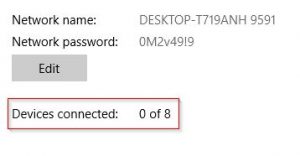
You will also see a count of the number of devices that are connected to your shared wireless network:

mobile hotspot devices connected

Remember: If you turn off or reboot your computer, you will cut off anyone else that is using your hotspot.

MacOS Procedure

Note: With MacOS, you can create a mobile hotspot just like in Windows 10, except you can typically only share a wired Ethernet connection. This is due to the fact that Windows 10 allows you to connect to a Wi-Fi network and then share that same network on the same wireless adapter.

MacOS does not support this functionality, so you are generally limited to sharing an internet connection that comes in through the computer’s wired Ethernet port, unless you happen to have two wireless adapters. However, many people want to share their Cable/DSL service through their computer, so this functionality on the Mac is still definitely worth mentioning.

  • Click on the ‘Apple’ menu and then click on ‘System Preferences’:

mac apple menu

  • Locate the ‘Sharing’ option and click on it:

mac system preferences

  • Select ‘Internet Sharing’ on the left side:

mac sharing

  • On the ‘Share your connection from’ drop-down, choose ‘Ethernet’
  • In the ‘To computers using’ box, chose your Wi-Fi adapter (the screenshot doesn’t show a wireless adapter since my Mac doesn’t have one, but your computer should)
  • Click the ‘Wi-Fi Options’ button at the bottom to configure your hotspot. You can chose a name for your network as well as select a channel:

mac wifi settings

We recommend selecting ‘WPA2 Personal’ from the ‘Security’ box and then pick a secure password. If you don’t set a security mode, the network will be created as an open network, which will allow anyone to connect to it. Bad idea.

  • Lastly, check the checkbox next to ‘Internet Sharing’ on the left to enable the hotspot. ‘Internet Sharing’ will show as ‘ON’ and have a green dot next to it once it has successfully been enabled.

You should now be able to see the Wi-Fi network on other devices and connect to it to access the internet.

Remember: If you turn off or reboot your computer, you will cut off anyone else that is using your hotspot.

Best Wireless Access Point for Home

One of the best  ways to improve your  Wi-Fi’s coverage, speed (throughput), and reliability, is to add a wireless access point (AP) to your home network.

What is a wireless access point anyway?

Simply put, a wireless access point is a device that connects to your wired network and makes your network available wirelessly. It consists of a network port and one or more Wi-Fi radios that are used to serve wireless devices.

Think of a wireless access point as having a second router in your home that can be used in order to extend the coverage of your wireless network. In fact, all wireless routers include an access point – it just happens to be built into the router, so it isn’t called an access point in that case.

A wireless router is like a swiss army knife – it performs several core functions within your network. Not only does it route traffic (thus the name “router”), it also acts as a firewall, a switch, an access point, a DHCP server, and sometimes a modem.

An access point only serves one purpose – to provide wireless connectivity to devices on your network. You can’t get online with just an access point – you need a router as well.

What are the benefits and drawbacks of using an access point versus a wireless router?

hands typing on keyboard

Benefits

Using wireless access point(s) gives you the ability to distribute one or more AP’s throughout your home, which serves to increase the range and signal quality of your wireless network. This in turn makes your wireless network run faster and more reliably.

Speaking of reliability – as with many things in life, devices that are designed to accomplish just one task generally perform that task better than a device that is designed to accomplish many different tasks. This principle also applies to wireless routers versus an access point – the old adage “Jack of all trades and master of none” definitely applies here.

Since access points are designed only to efficiently and reliably connect wireless devices to the wired network, they generally do the job of serving wireless clients better than a router does.

Another benefit of access points is that they can be placed strategically – such as ceiling mounted or installed inside of a network jack gang box.

Drawbacks

Wireless access points are enterprise-grade networking equipment and are not generally marketed toward consumers. Thus, they usually require a bit more technical ability and knowledge of computer networking than a consumer-grade wireless router would.

Access points also require additional wiring work. This is both a pro and a con. Since the AP is usually placed in a strategic area to provide the best coverage, it usually requires running an Ethernet cable from the desired placement location back to wherever your router is.

This can be a lot of work, depending on the construction and layout of your home, and the proximity of the AP to your router. The amount of work also depends on how accessible of a crawlspace or attic your home has, whether or not you own or rent (which means you can’t drill into walls, floors, and ceilings), and the degree to which you wish to hide the wiring versus simply running it in plain sight along the baseboard or ceiling.

Another drawback of using a wireless access point, is price. Since using an AP also requires a router, you must buy an AP and a router, plus additional cabling. In some cases, you also need to buy a switch or firewall as well, depending on your needs and the capabilities of your current router.

The time required to run wiring (or pay labor costs to have someone else do it) should also be considered.

What is the best wireless access point for home?

Some of the best wireless AP’s on the market right now, are the UniFi product line from Ubiquiti. They are extremely popular, and for good reason – they strike an excellent balance of performance, features, ease of use, and reliability – all at an excellent price point. We recommend the UniFi AC LR (Long Range) and Lite models:

Ubiquiti Unifi Ap-AC Long Range - Wireless Access Point - 802.11 B/A/G/n/AC (UAP-AC-LR-US),White
802.11AC Support
Power Over Ethernet (POE)
Optimized for Larger Homes
Footprint
Medium
-
Ubiquiti UAP-AC-LITE UniFi AP AC LITE 802.11ac Gigabit Dual-Radio PoE
802.11AC Support
Power Over Ethernet (POE)
Optimized for Larger Homes
Footprint
Small
-

About Ubiquiti

Ubiquiti Networks has been around since 2005. They are well known among wireless internet service providers for making quality gear that is easy to manage.

They were originally known for making outdoor, long range fixed wireless equipment that allowed for high speed connections between buildings over long distances. Over time, their product lines have expanded and they have moved into other technologies of computer networking such as switches, routers, and access points.


The UniFi Solution

The Ubiquiti UniFi wireless solution consists of several different pieces of technology that can be put together in a customized fashion to build a very robust and feature-rich network solution. We are only reviewing their access points here, but we wanted to make our readers aware that there are several other add-on’s to the UniFi solution that will add features and visibility into your network if you wish to explore that.

The main components in the UniFi solution are the access points, the security gateway, the switches, and the controller (Cloud Key). Most components are optional – you can piece things together however you’d like, using only a single component (like an AP) if you like, or using them all together.

Access Points

The access points serve to connect wireless devices to the wired network and are the main topic of this article.

UniFi Security Gateway

The UniFi Security Gateway (USG) serves as a router and firewall. This is not your typical wireless router that you purchase at Amazon – it only performs a subset of the duties that a typical consumer-grade router does, which is just routing and firewall duties.

It also generally does a much better job of handling these duties than a typical wireless router, which is expected to handle everything. Is it any wonder that most people have to reboot their wireless router regularly?

UniFi Switch

UniFi Switches are Ethernet switches that expand the port capacity of your network and allow you to plug all of your wired devices into your network reliably and at high speed. They also serve as the connection point for the AP’s.

UniFi Controller

The UniFi Controller brings everything together. It is used to configure everything initially or to make changes down the road. It also provides a ton of reporting and security features.

The Controller can be ran on a computer or server in your home, or you can opt for the Cloud Key, which runs the controller software on a self-contained micro device that you simply plug into your network.

What is ‘Prosumer’ gear? A disclaimer:

wireless network layout

By now you are probably saying “OK hold on, this sounds complicated”. You are right.

We wanted to stop here and issue a disclaimer for anyone considering purchasing the UniFi solution.

The UniFi solution is considered “Prosumer Equipment”: it is professional-level equipment that is also suitable for savvy consumers.

This equipment is designed for professional use – it is intended to be used in enterprise environments, where the requirements for speed, security, and reliability are stricter than a residential environment. That’s what makes this equipment so desirable – it is professional grade.

There are, however, tons of people using UniFi gear in their homes. It works very well for home use… as long as you can manage installing it and getting everything up and running.

Anyone purchasing UniFi equipment should be somewhat savvy with computer networking. You should also be willing and prepared to Google for help, read forums, watch YouTube videos, and have some patience during the process. If this is you – we say go for it.

If this scares the daylights out of you – perhaps the UniFi solution isn’t for you. Or, perhaps you should consider hiring someone to install and configure it for you if it’s something you really want installed in your home.

It can, after all, be installed and configured very quickly by someone who knows what they’re doing.

Different types of AP’s

There are dozens of different UniFi AP’s SKU’s, however we are narrowing it down here to the UniFi AP AC line, which supports the newest 802.11AC wireless standard. We aren’t discussing any of the older Wireless B/G/N products here.

The four main types of UniFi AC access points are HD, Pro, LR, and Lite. You can explore more about these models here: https://www.ubnt.com/unifi/unifi-ac/

Since we are looking for the best wireless access point for home, I won’t discuss the HD and Pro models here. Those models are generally geared at larger and more dense deployments than anyone would need in their home, such as a large office, church, or stadium.

The two models that the team here at Infravio recommends are the LR and Lite version. Dare I say, these models are slightly aimed at home users, even though they are enterprise-grade.

UniFi AP AC LRUniFi AC LR AP antenna

The LR model contains most of the features common to any of the AP’s in the UniFi AC line, however is is designed to go longer distances.

It contains an antenna design that allows it to reach further into the corners of your home and yard, all from a single AP. This antenna allows it to not only transmit data further distances, but it also allows for receipt of data from a longer distance – something that a simple high-powered AP can’t accomplish alone.

Ubiquiti Unifi Ap-AC Long Range - Wireless Access Point - 802.11 B/A/G/n/AC (UAP-AC-LR-US),White
  • Ubiquit Unifi AP AC Long range
  • The installer needs networking knowledge to get it to work properly so for people that can’t get it to work.

UniFi AP AC Lite

The Lite model also contains most of the features of the other UniFi AP’s, however it is smaller and more compact than the other models. It is also generally the lowest-priced option of the line, making it an excellent option for home users.

Ubiquiti UAP-AC-LITE UniFi AP AC LITE 802.11ac Gigabit Dual-Radio PoE
  • Original brand product.
  • Two-year warranty against factory defects.

Pros and Cons

Note: These apply to both the LR and Lite models unless otherwise noted, as they are very similar.

Pros:

  • Excellent coverage from a single access point (especially the LR model)
  • Wireless connections are reliable
  • Great price point
  • Plays nice with other UniFi AP’s (even if they are not the same model)
  • Powered over Ethernet for simplicity – no need to run separate power, just a single Ethernet cable

Cons:

  • Requires controller software (or Cloud Key) to setup initially – needs to be running regularly if you want to see data/reports or any time you wish to make changes
  • AP only – still requires a router to get online
  • Advanced setup requires some networking knowledge and persistance
  • Older UniFi AP units don’t support standard POE – make sure you get a newer one or use the included AC power brick
  • Ceiling mount can be difficult to install
  • Many people report difficultly getting good support from Ubiquiti

Performance all around

Both the LR and Lite versions bring speed and stability to your Wi-Fi network – something that I think most users are looking for. Additionally, they both support advanced features such as band steering and airtime fairness, which help ensure an enjoyable experience.

Your choice

Most people will be happy with the LR or Lite. It’s up to you to choose which one you prefer. If you are needing to cover a greater area, perhaps the LR model is the best choice. If you are more price sensitive and wanting something with a smaller footprint, perhaps you should consider the Lite model.

If you are needing to cover a really large area, you should consider installing multiple AP’s. That is one of the benefits of using AP’s instead of a single wireless router – you can grow your network over time, adding AP’s as your need for a larger coverage area increases.


Which security option is best for a wireless router?

Wi-Fi security is paramount – without it, there are many things that someone could do on your wireless network – things that range from minor or barely noticeable all the way up to flat out illegal – and everything in between.

A case for security

arm coming through computer screen

Honestly, most people that are looking for Wi-Fi networks with no security or weak security are simply looking for free internet access. These people just want to check their email, surf the web, or download something without paying for internet access.

They don’t really have any hostile intent for your network.

However, there are also more sinister people looking to gain access to a wireless network for unsavory uses, such as:

  • To steal your data – perhaps they can get your credit card number or tax information to use it for fraud, or maybe they want to steal photos or other personally identifiable information and use it to blackmail or otherwise expose you
  • To invade your privacy, search for risque photos, or access sensitive financial information
  • To download or upload illegal content online without being traced back to them – things like copyrighted material, illegal software, or child pornography
  • To hack or attack other systems without being traced
  • To download or upload large amounts of data without it slowing down their own internet connection

Ultimately, it comes down to this – someone is using something of yours without paying for it and without your permission. Is that really something you are okay with?

You could be liablemasked computer hacker

Furthermore, if the perpetrator does something illegal online using your internet connection, the authorities can investigate the source IP address. This will lead them to your ISP – upon which they can subpoena your ISP to provide the associated subscriber’s name and address.

Guess whose door they will come knocking on next? Yours.

The scary part is, it could be the guy next door, someone parked in the street, or a neighbor down the road. It is very difficult to physically locate the person.

Isn’t it easier to just set up ample security from the start to ensure that you are keeping all potential unwanted guests out?

Security Methods

iphone wifi encryption selection

There are several different modes and methods you can use to secure your wireless network. The easiest, most common, and most effective solution is to enable the proper type of security and encryption protocols on your router.

This will not only prevent someone from joining your network who doesn’t have the password, it will also prevent anyone in the area from eavesdropping on what you are doing online.

The main security protocols are:

  • Open/None (AKA, no security)
  • WEP (weak security, very easily cracked)
  • WPA (better, but still weak)
  • WPA2 (best for home use)
  • WPA Enterprise (ok, for business)
  • WPA2 Enterprise (best, for business)

Can you use the Enterprise versions at home?

I can see why you would want to – the enterprise versions of each protocol renew/update their keys at a set interval, whereas their non-enterprise counterparts simply use a pre-shared key. This key update makes the enterprise versions rock-solid secure, since the key is always changing.

A typical user would not want to attempt using an Enterprise protocol at home due to the advanced knowledge required to set it up. Additionally it requires setting up a dedicated server to make everything operational.

The vanilla WPA2 protocol is enough for most users and is much easier to set up and manage.

The best security option

For home users, WPA2 is currently the best choice. If your router gives you the choice of using TKIP or AES with WPA2, choose AES.


wireless security signAdditional security settings

Utilizing WPA2 on your router with a strong passhrase provides plenty of security for most users. If you are extra paranoid, you can also employ some additional security methods.

Here are some additional security settings that can optionally be enabled to enhance security on your wireless network. These features are not as robust or as easy to implement as enabling WiFi security/encryption – they are intended merely to be supplements to the security of your network.

Basically, you should not enable these options without security/encryption and expect your network to be secure.

Disable SSID broadcast:


With the SSID broadcast disabled on your router, people won’t be able to see your Wi-Fi network, or they will only see an “unnamed network” in their list of available Wi-Fi networks. Connecting to a network with SSID broadcast disabled is more difficult – you will have to manually define your SSID in your computer’s network settings before it will connect.

Fewer people will notice your network, but advanced users can still easily find your network using the right tools. Simply disabling the SSID broadcast also does nothing to protect your privacy as information is transmitted through the air – you need security/encryption for that.

If you are connected to an Open Wi-Fi network (one that does not use encryption), anyone that knows what they are doing can intercept your traffic and view what you are doing online without you knowing it.

MAC address filtering:


Like disabling the SSID broadcast, utilizing MAC address filtering will also do nothing to protect your information from eavsdroppers.

It will, however, make it more difficult for an unauthorized user to access your network. MAC filtering works like a whitelist – where only MAC addresses that are defined on the list can communicate on the network.

That said, advanced users can ‘sniff’ for a valid/authorized MAC that is currently in-use on the network, and then spoof their MAC to use an authorized one.

Enabling MAC filtering also makes managing your own wireless network very cumbersome – any time you want to connect a new device to your wireless network, you first have to log in to your router and add the new device’s MAC address to the whitelist.